Cutting the cord sounds great—until you’re knee-deep in laggy streams and menus that feel like they were designed in 2008. If you’ve dipped your toes into IPTV, you already know the right streaming device can make or break the whole experience.
Picking a device in 2025 feels like choosing a cereal at the store—too many boxes, all promising “the best.” From Fire TV to Chromecast, you’ve got options, but what actually works well for IPTV, and what’s just hype?
“I’ve tested over 50 devices in the last year—some just don’t cut it for IPTV,” says Carlos Mendez, lead systems engineer at Star IPTV. “You want stability, speed, and real support for IPTV apps.”
This article cuts through the noise. We’ll show you what device actually delivers, compare two of the biggest names, and walk you through setup without the tech jargon.
You deserve smooth streaming with zero stress. Let’s break it down and get you watching tonight.
What’s the Best Device for IPTV in 2025?
It’s 2025 and the streaming scene is flooded with devices — but which one makes IPTV shine? If you’re new to the space, you can brush up on the basics with this quick guide on what is IPTV from Star IPTV.
Smart TVs or Streaming Sticks: Which Is More IPTV-Ready?
Before we crown a winner, let’s break it down. Here’s what both contenders bring to the IPTV table:
Ease of Use
Smart TVs win on simplicity. Turn it on, download your IPTV app, and you’re in. For common setups, Star IPTV’s step-by-step IPTV setup guide is handy on Samsung, LG, Android TV, and more. Streaming sticks need that extra plug-in, Wi-Fi pairing, and sometimes account linking.
App Compatibility
Most top-tier Smart TVs now support major IPTV platforms (for example, the popular Smart IPTV app is available on many Samsung models—see the developer’s instructions for Smart IPTV on Samsung TVs). SIPTV However, streaming sticks like Fire TV or Roku sometimes get updates faster and support sideloading unofficial IPTV apps.
Performance & Interface
Streaming sticks often have snappier user interfaces, especially newer models with quad-core processors. Smart TVs can lag unless you're shelling out for premium ones.
Expert Quote
“Streaming sticks offer faster refresh cycles and greater flexibility for IPTV app integration,” says Jacob Lin, Product Manager at Star IPTV Labs.
Feature Comparison Table
| Feature | Smart TVs | Streaming Sticks |
|---|---|---|
| Built-in IPTV Support | ✅ Yes | ❌ Requires Install |
| Portability | ❌ Fixed Device | ✅ Ultra Portable |
| App Store Variety | Moderate | Extensive (w/ sideload) |
| Interface Speed | Varies by model | Often smoother |
How Set-Top Boxes Handle Live Streaming and Cloud DVR
1. Built for Streaming
Unlike Smart TVs or sticks, set-top boxes are purpose-built. They often support multiple IPTV protocols, making them ideal for Live Streaming with lower latency.
2. Storage & DVR Capabilities
Cloud DVR shines here. You can record multiple TV Shows, Sports Events, or News Programs while watching something else. Built-in or expandable storage makes it all feel seamless.
3. Long-Term Performance
Set-top boxes often have better cooling and more memory. You won’t deal with sluggish menus or playback stutter even when switching between Documentaries, Movies, or Reality TV Channels.
4. Cost Considerations
They’re pricier upfront, but if IPTV is your main content source, the reliability may be worth it. If you stream daily, consider a reputable provider with a money-back policy; Star IPTV details pricing and guarantees on their IPTV subscription plans.
Game Consoles as IPTV Hubs: Underrated or Overkill?
Functionality: Consoles support IPTV apps from major providers and can stream Movies, Documentaries, and even Live Sports.
Performance: With powerful GPUs and fast processors, the experience is buttery smooth, even at 4K.
Cost Factor: Not cheap. If you’re only streaming, it’s probably overkill.
Multitasking: Want to switch from gaming to IPTV? It’s seamless. Great for entertainment-focused households.
Limitations: Lack of some customization features found on set-top boxes or sticks.
Key IPTV Features to Look for in 2025 Devices
Resolution Support
If your device doesn't handle Ultra HD or 1080p, it’s outdated. The future is crystal clear — literally. For bandwidth planning, Netflix’s guidelines suggest about 15 Mbps for 4K.
Codec Compatibility
HEVC, AV1, and VP9 support are must-haves. These codecs compress high-quality video efficiently, essential for Fiber Optic or Broadband streaming. For example, Google’s current documentation lists codec support for Chromecast/Google TV devices and the new Google TV Streamer (including AV1 on the latest hardware)—see Supported media for Google Cast.
User Experience
A clean, fast User Interface with intuitive navigation makes or breaks your experience. Devices with Voice Control and Personalized Recommendations keep things slick.
Integration & Customization
Look for support for Multi-Screen Viewing, flexible settings for parental filters, and profile customization — especially useful for households juggling Kids Channels, Reality Shows, and Educational Content. For a legal and compliance perspective on IPTV generally, Star IPTV’s explainer on IPTV legality in the USA is a good primer.
Fire TV Stick vs Chromecast for IPTV Streaming
Interface and Setup Simplicity
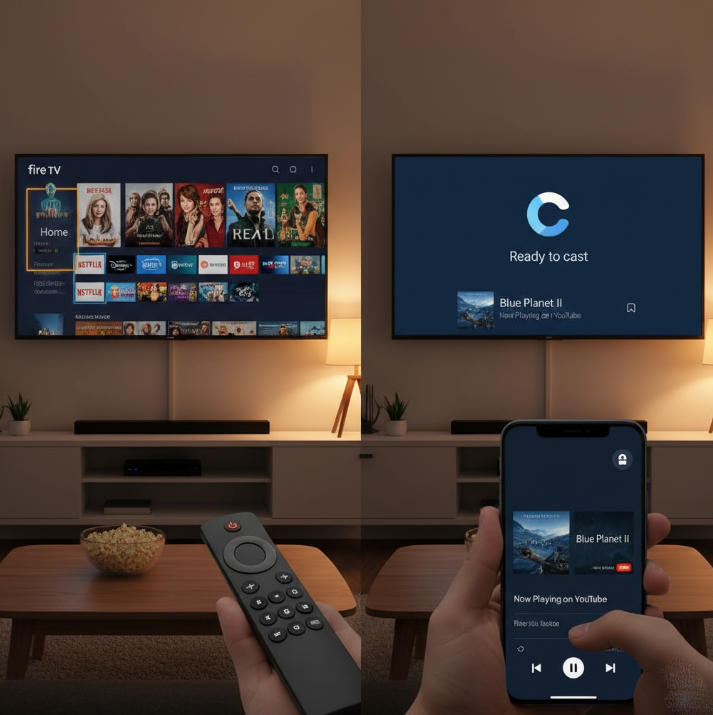
Getting started should feel easy—not like setting up a spaceship. Fire TV and Chromecast approach setup and navigation differently, and that matters more than you’d think.
Fire TV’s interface feels more like a mini-computer, with detailed menus and custom app rows. If you want a fast path to IPTV app installation, Star IPTV’s setup guide walks through Android TV/Fire TV steps.
Chromecast leans on your phone as the remote—great if you're used to casting but annoying if you misplace your device.
Navigation is smoother on Fire TV for users who want everything accessible by remote.
Chromecast excels in simplicity for those already living in the Google ecosystem.
In short, Fire TV gives you the remote + menu comfort, while Chromecast bets on casting convenience. It all comes down to whether you’re more “click-and-scroll” or “tap-and-cast.”
Support for Voice Control and Parental Control
Here’s where things get smart—and safe. Both devices offer voice support and family protection, but there are some clear winners in specific areas.
Voice Commands & Assistance
Fire TV uses Alexa, offering tighter integration with other smart devices and routines.
Chromecast relies on Google Assistant, which shines in voice search accuracy and app integration.
Parental Controls
Fire TV includes robust parental locks built into its profile system (see Amazon’s official guide on Fire TV parental controls).
Chromecast’s restrictions rely more on the Google Home/Google TV environment (see Google’s instructions to use parental controls on Google TV and how to set up kids profiles).
Feature Breakdown Table
| Feature | Fire TV Stick | Chromecast with Google TV | Best For |
|---|---|---|---|
| Voice Assistant | Alexa | Google Assistant | Tie (user preference) |
| Built-in Parental Locks | Yes (Profile-based) | Yes (App-managed) | Fire TV Stick |
| Voice Search Accuracy | Good | Excellent | Chromecast |
| Ease of Enabling Controls | Simple via Fire settings | Requires Google Home app | Fire TV Stick |
“We designed parental tools to be frictionless for parents but invisible to kids.”
— Jordan Rehn, Senior Product Manager, Fire TV
Streaming Stability on Wi-Fi and Ethernet Networks
Nothing ruins a good binge like buffering. Streaming stability is one of the most critical factors when choosing a device for IPTV—especially when watching Live News, Sports Events, or high-quality Movies.
Chromecast has built-in support for Wi-Fi and optional wired networking via an official Ethernet adapter for Chromecast; many users also opt for USB-C hubs that provide Ethernet.
Fire TV Stick 4K Max supports advanced Wi-Fi 6/6E on the latest model, reducing congestion on busy home networks (see Amazon’s developer/device specs and product page: Fire TV Stick 4K Max (2nd Gen) specs and Fire TV Stick 4K Max listing).
In user reports and reviews, Fire TV often edges out Chromecast in network stability, particularly when streaming in Ultra HD—and it’s frequently discounted during sales events (see recent coverage noting Wi-Fi 6 and 4K support: deal coverage 1, deal coverage 2, and coverage comparing it as a replacement for Chromecast during issues: El País report).
If you’re stuck on older DSL or Cellular Data, neither will be perfect—but Fire TV’s aggressive caching might help avoid those awkward loading circles.
FYI on Google’s lineup: Google has been shifting from the classic “Chromecast” branding toward a new Google TV Streamer device (with AV1 support), as reported in August 2024, while continuing software support for existing Chromecast with Google TV devices. See The Verge’s report on the lineup change and the new streamer’s capabilities. Google discontinues Chromecast line; introduces Google TV Streamer.
4 Steps to Setup IPTV on Your New Device
Connect Your Device via Broadband or Fiber Optic
Before you stream your favorite channels, you’ve got to nail the connection setup. Here's how to keep things smooth and lag-free from the get-go.
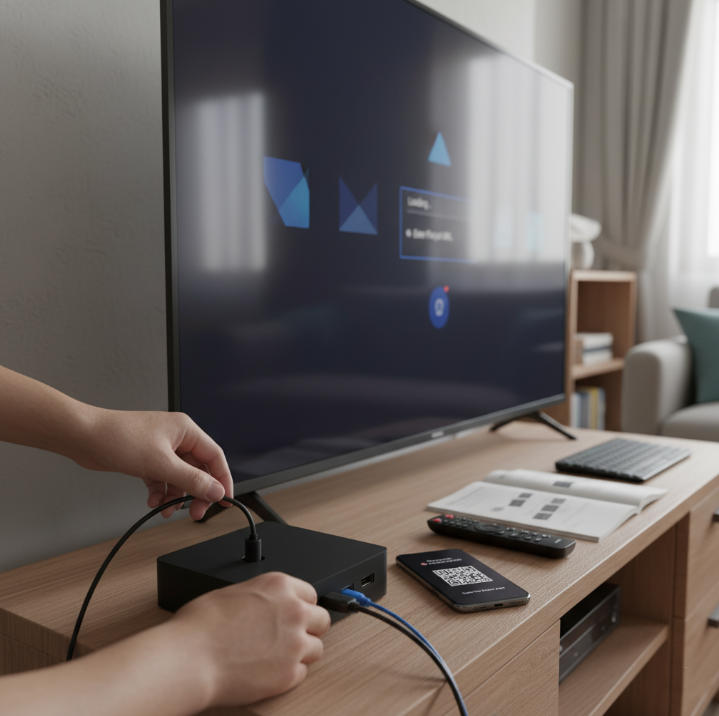
Start by plugging your device (Smart TV, Streaming Stick, or Set-Top Box) into your router using an Ethernet cable for maximum stability.
If you’re using Wi-Fi, make sure it’s a strong Broadband or Fiber Optic connection—avoid public networks or spotty signals.
Check that your Internet speed meets IPTV requirements (15Mbps+ for HD, 25Mbps+ for 4K). For general guidance on 4K bandwidth needs, see Netflix’s recommended speeds.
Tip: Place your router near the streaming device to avoid buffering nightmares.
Configure IPTV Apps for Movies, News, and Sports Channels
Now that you're online, it's time to get your apps talking. Different IPTV apps serve up different types of content, so you’ve got to set them up right.
Install a verified IPTV app compatible with your device (e.g., Smart IPTV or TiviMate). You can reference the developers’ pages for Smart IPTV (Samsung/others) and TiviMate on Google Play.
Enter your IPTV provider’s M3U or Xtream Codes—this unlocks access to Movies, Sports Channels, and News. If you don’t have a provider yet, Star IPTV offers a free 12-hour trial to test device compatibility before you commit.
Explore app settings: Enable categories like Music or Kids Programming, and organize channels by genre (Action, Comedy, etc.).
Save your favorite channels for quick access—no one wants to dig through 5 menus to catch the big game.
Enable 1080p or Ultra HD Based on Your Screen
Picture looking a little fuzzy? Don’t blame the content—your screen settings might just be stuck in the past.
Go to your device’s display settings and manually select 1080p, Ultra HD, or 4K, depending on your TV’s capability.
Double-check your HDMI cable supports high-speed data (especially for 4K content). Cheap cables = low quality.
Most IPTV apps auto-adjust video quality based on bandwidth, but it never hurts to override them if your Video Quality dips.
If your screen supports HDR, turn it on—especially for action-packed or dark scenes (Thriller, Mystery genres shine here).
Customize IPTV: Personalized Recommendations and Catch-Up TV
Your IPTV setup is more than just plug-and-play. To really enjoy it, make it yours.
Set up your user profile with preferences—favorite genres, channels, or even blocked content for kids.
Enable Personalized Recommendations based on your watch history—get suggestions tailored to your taste (hello, endless Sci-Fi).
Turn on Catch-Up TV for channels that support it. Missed the Reality Show finale? No problem.
Some apps even let you create custom playlists across multiple content types—TV Shows, Documentaries, Music Concerts, you name it.
Need a provider that supports multi-device use and 24/7 support? Review Star IPTV’s service overview and guarantees before you buy.
Conclusion
Finding the best streaming device for IPTV is kinda like picking the right car—it all depends on where you're headed. Some folks just want to cruise through movies and sports channels on their Smart TV, while others need the horsepower of a streaming stick that can handle 4K, voice control, and cloud DVR without hiccups. At the end of the day, the right device makes all the difference between endless buffering and buttery-smooth streaming.
Not all streaming gear is built the same. As tech reviewer Dave Zatz once said, "Convenience always wins—until it doesn’t."
Don’t sweat it too much, though. Pick what works now, and keep an eye on where things are headed. New updates, better features, and smarter recommendations are rolling out all the time. If your device keeps up with your binge habits and makes IPTV feel easy, you’ve already nailed it. And if you’re ready to test a provider on your device, try Star IPTV’s IPTV subscription plans or start with a free IPTV trial to validate performance first.
IPTV FAQ
What is the easiest device to start using IPTV on?
Smart TVs let you install apps right away.
Streaming Sticks are small, affordable, and easy to set up.
Set-Top Boxes offer more control but need a bit more time to configure.
Devices with Ethernet give more stable video than Wi-Fi.
How do I improve IPTV performance on slow internet?
Switching to a lower resolution like 720p or using a wired Ethernet cable can help your IPTV stream more smoothly, especially during live sports or busy evenings.
Does IPTV work better with a Fire TV Stick or Chromecast?
Fire TV has more apps and a helpful remote.
Chromecast works well with phones and Google accounts.
Fire TV feels easier for browsing IPTV menus.
Chromecast may miss some IPTV app support.
Which IPTV features matter most for family use?
Features like parental control, offline viewing, and user profiles make IPTV more comfortable for families with kids or shared viewing needs.
Can I use IPTV without a Smart TV?
Yes, with devices like:
Streaming Sticks
Set-Top Boxes
Laptops (with HDMI)
Game Consoles
These plug into almost any screen.
What content can I stream with IPTV?
You can watch movies, shows, news, music events, sports, and kids programming. Some platforms even include international or local channels.
How can I watch IPTV on more than one screen?
Use IPTV services that allow multiple logins.
Pick a device that supports Multi-Screen Viewing.
Make sure your internet can handle more than one stream at a time.
Do all devices work the same with IPTV?
Not really. Some are better at handling HD or 4K. Others may support more apps or offer smoother streaming with features like Cloud DVR.
Do I need a set-top box if I already have a Smart TV?
Not always. A Smart TV can do the job, but a set-top box can offer faster performance, extra features, or more storage for recordings.
What’s the best resolution for IPTV streaming?
720p: OK for smaller screens or slower internet.
1080p: Most common for everyday watching.
4K: Great if your screen supports it and your internet is fast.