If IPTV is not working, the fastest fix is usually to identify where playback is failing: your home connection, the TV or player app, the account details, or the authorized service itself. Start with the short checks below before changing app settings or buying new hardware.
This guide is for viewers in the United States using services and streams they are authorized to access. An IPTV player is only software for playing a permitted playlist or service; it does not supply channels by itself. Availability and viewing rights can vary by provider, title, territory, and subscription terms.
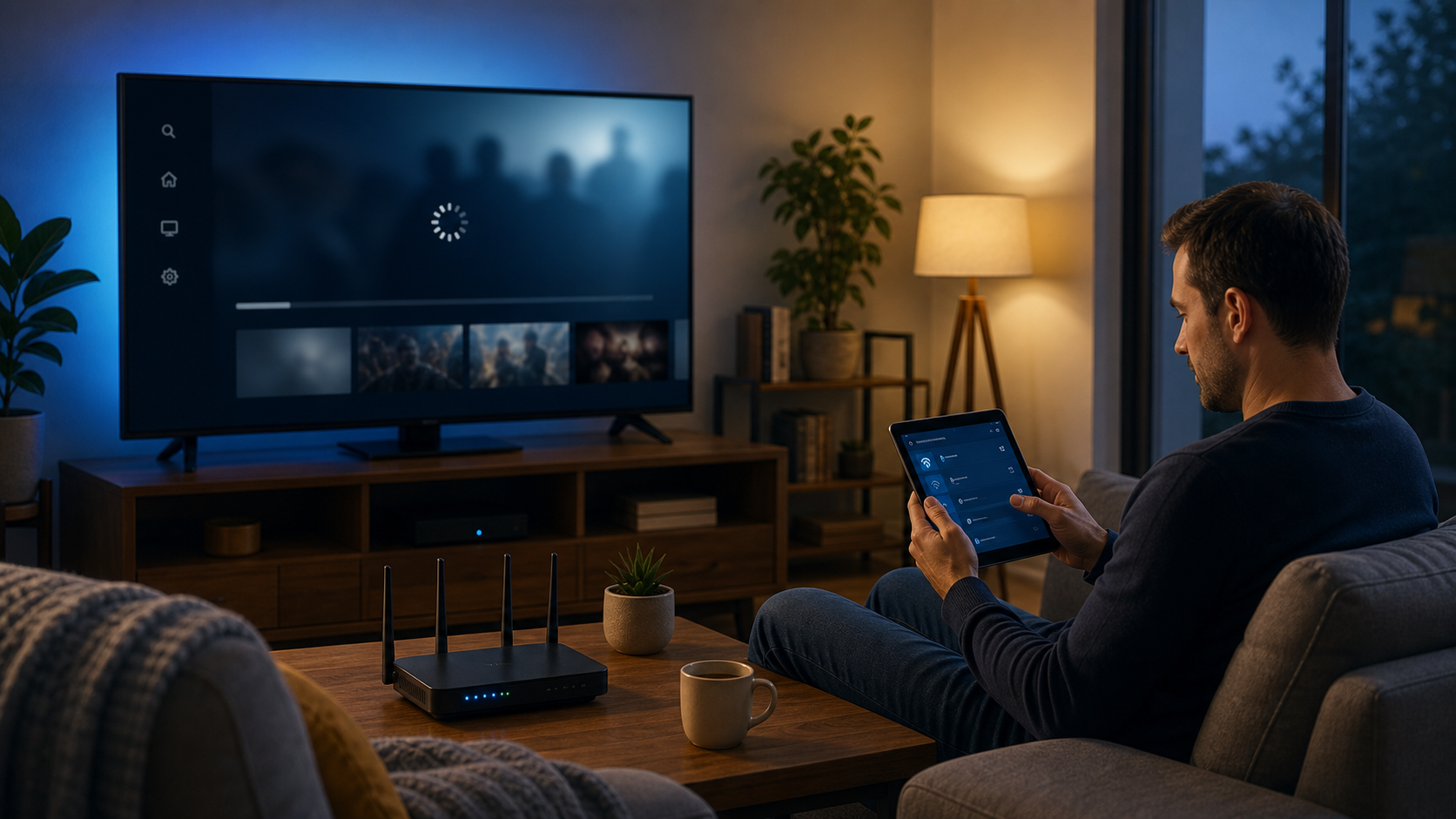
Run this quick check first
Try one other internet app or website on the same device. If it also fails, begin with the network rather than IPTV.
Restart the TV or streaming device, then restart the router only if other devices also have connection trouble.
Open a different authorized channel or on-demand item. One failing stream points to a different cause than every stream failing.
Confirm that the player is using the current login, portal, or playlist supplied by your provider. Do not paste credentials into an unfamiliar app or website.
Note the exact error, the time it occurred, the device, and whether the issue happens on Wi-Fi and Ethernet alike.
If the problem clears after a restart, keep watching. If it returns at the same time of day or only affects one device, use the symptom table below instead of repeating random fixes.
Diagnose why IPTV is not working
“IPTV not working” can mean a blank screen, an endless loading wheel, a login error, missing channels, or audio that does not match the picture. The symptom is useful evidence. A speed-test result alone is not enough to tell you whether the player, the local network, or the service is at fault.
| What you see | Likely area to check | Best next action |
|---|---|---|
| Every app on the TV is slow or offline | Home internet, Wi-Fi, router, or ISP | Check the device connection, restart networking equipment if needed, and compare with another device. |
| Only live TV buffers | Wireless stability, household congestion, or the affected live stream | Test a wired connection and another authorized stream before changing player settings. |
| The app opens but the channel list is empty | Login, playlist/portal entry, account status, or app cache | Recheck the provider-supplied details character by character; then refresh the player once. |
| A sign-in or authorization message appears | Subscription, credentials, device limit, or service-side account issue | Check the account information through the provider’s official route; do not share passwords in public chats. |
| Only one title or channel fails | That specific stream or its viewing entitlement | Record the name and time, then report that narrow example to support if it persists. |
| Video plays but sound is missing or out of sync | TV audio output, HDMI path, player decoder, or format setting | Test the TV’s own audio with another app, then restart the player and check its audio output setting. |
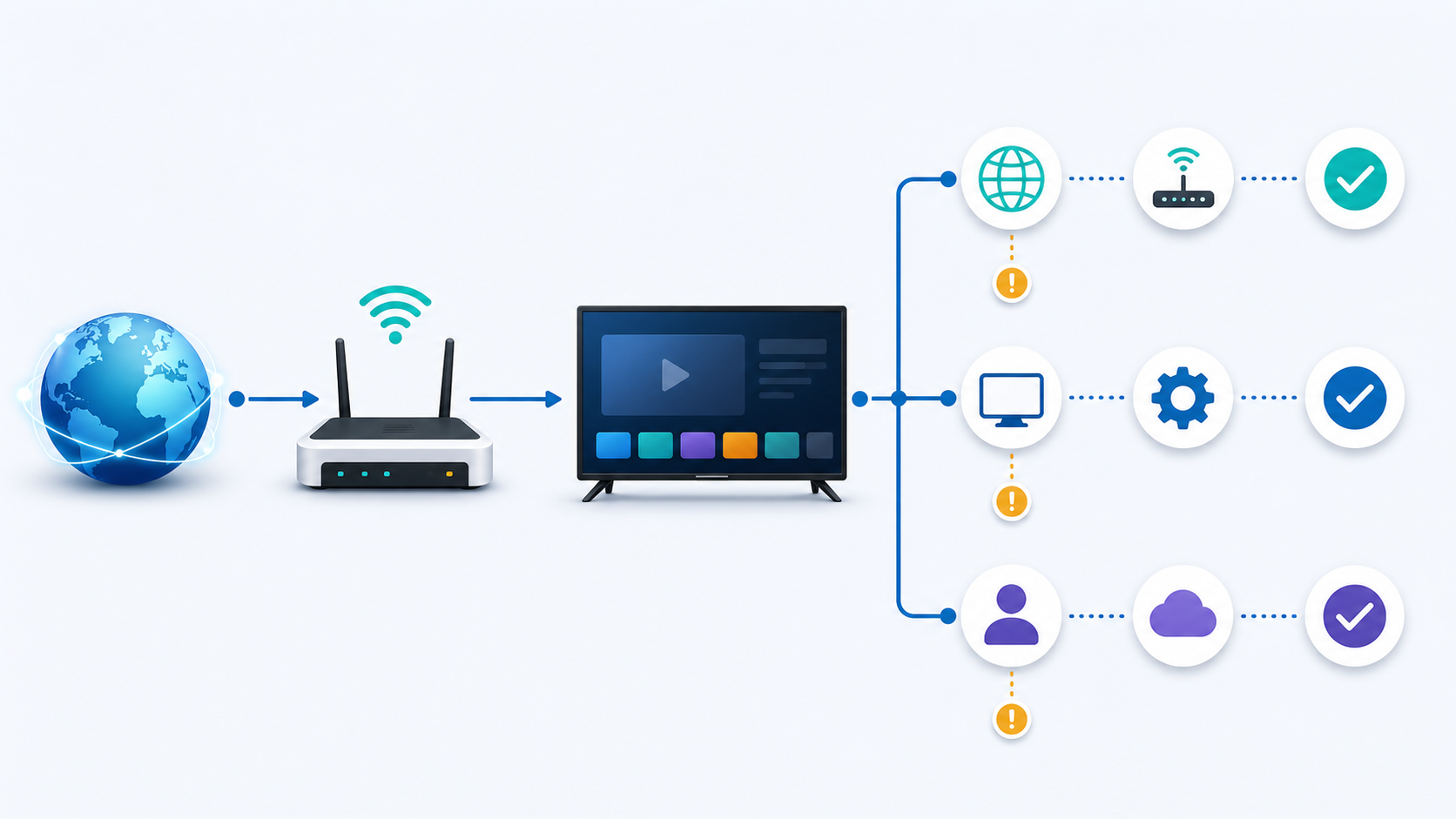
Separate the player from the content service
A player app can be functioning correctly while an account, a permitted playlist, or a particular stream has a problem. Conversely, a valid account cannot compensate for an outdated player, a weak wireless signal, or a full device. Treat these as separate layers. This keeps you from entering the same credentials repeatedly when the real issue is a disconnected TV.
Fix connection and buffering problems
For video, consistency matters as much as headline download speed. As a general streaming reference, Netflix lists 3 Mbps for HD, 5 Mbps for Full HD, and 15 Mbps for 4K; your actual requirement can differ with the provider, stream quality, and other devices sharing the connection. Use those figures as a starting point, not a promise that every IPTV stream will work at the same threshold. See Netflix’s current streaming-speed guidance for the underlying reference.
1. Check whether the device is truly online
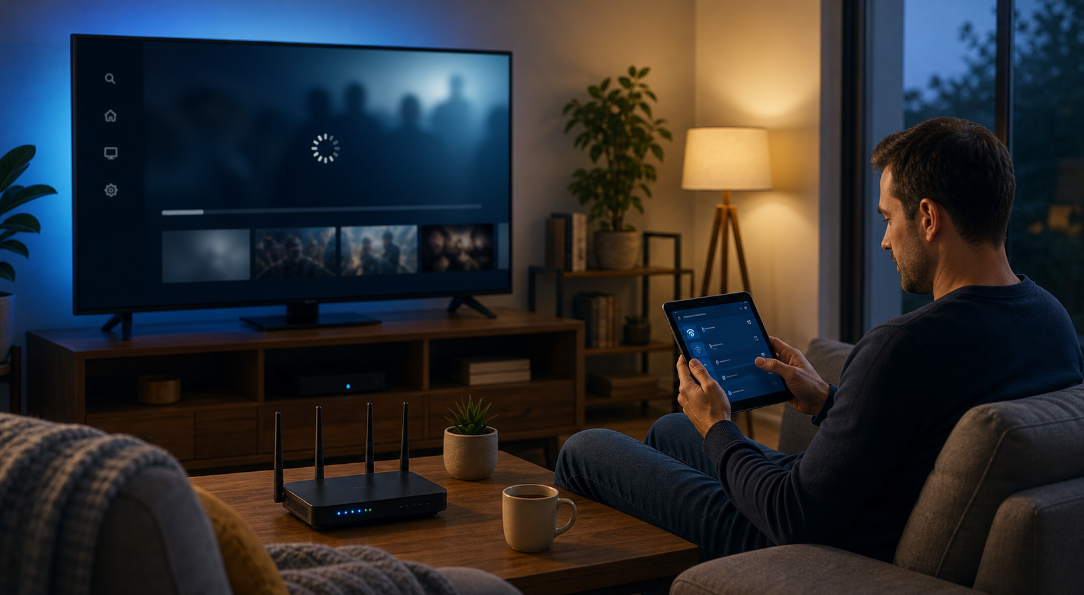
Open the TV or streaming device’s network screen and confirm it has an IP address and internet access. Then try another legitimate streaming app or a browser on that same network. If several services fail together, the next step is your router or internet provider—not the IPTV login.
2. Test Ethernet before blaming the service
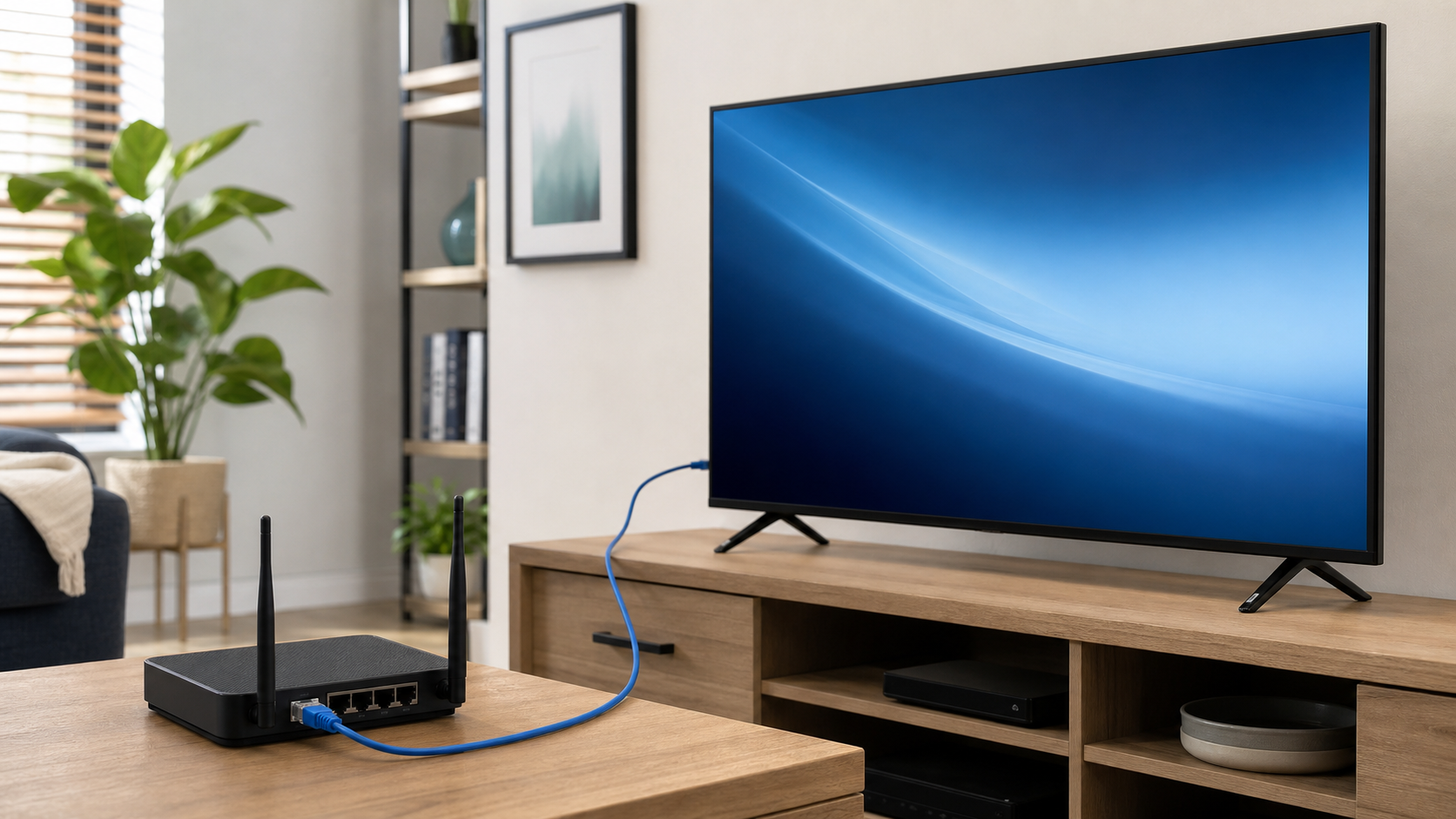
When practical, connect the TV or streaming box to the router with Ethernet and test the same authorized item again. This is a diagnostic test, not a permanent requirement. If it improves sharply on Ethernet, the likely issue is Wi-Fi range, interference, or household contention. Move the router into a more open location, choose a closer access point, or reduce heavy downloads during viewing.
3. Look for competing traffic and timing patterns
Cloud backups, game downloads, video calls, and software updates can compete for capacity. Pause what you can, then test again. Also note whether the issue appears only in the evening or during a particular live event. A consistent pattern is more helpful to support than “it buffers sometimes.”
4. Restart in the right order
Close the player first. Restart the streaming device or TV, wait for it to reconnect, and then reopen the app. If other devices also lost connectivity, restart the modem/router according to its manufacturer’s instructions. Avoid factory-resetting a device as an early troubleshooting step; it can erase app settings without fixing an upstream issue.
For additional general buffering ideas, readers can compare the site’s IPTV buffering guide with the symptom-specific checks in this article.
Fix IPTV player and device problems
Update the player from an official store or developer source
An outdated app can fail after a service or operating-system change. On Android TV, Google instructs users to manage and update apps through the Play Store’s available-updates area. Use the device’s official store or the developer’s official source; avoid unofficial APK mirrors and “modified” apps. Google’s Android TV app-management instructions describe the standard update path.
Check storage, date, and time
Low storage can prevent an app from updating or caching data correctly. Delete unused apps or files, restart the device, and try again. Also set the device date and time to automatic when possible: a badly incorrect clock can interfere with secure connections and logins.
Refresh app data carefully
First try the app’s normal refresh or reload option. If a player still shows an old channel list or immediately closes, clear its cache through the device settings. Clearing all app data may remove saved logins and playlists, so only do it after confirming you have the provider’s authorized setup details and that you are working in the correct app.
Resolve black screen, audio, and remote issues
For a black screen, test another app and confirm the TV input if you use a separate streaming box.
For missing audio, check the TV volume, audio output, HDMI connection, and whether another app has sound.
For a frozen interface, fully close the player and restart the device rather than repeatedly pressing play.
For a player that will not install, verify the device model and operating-system version against the player’s official compatibility information.
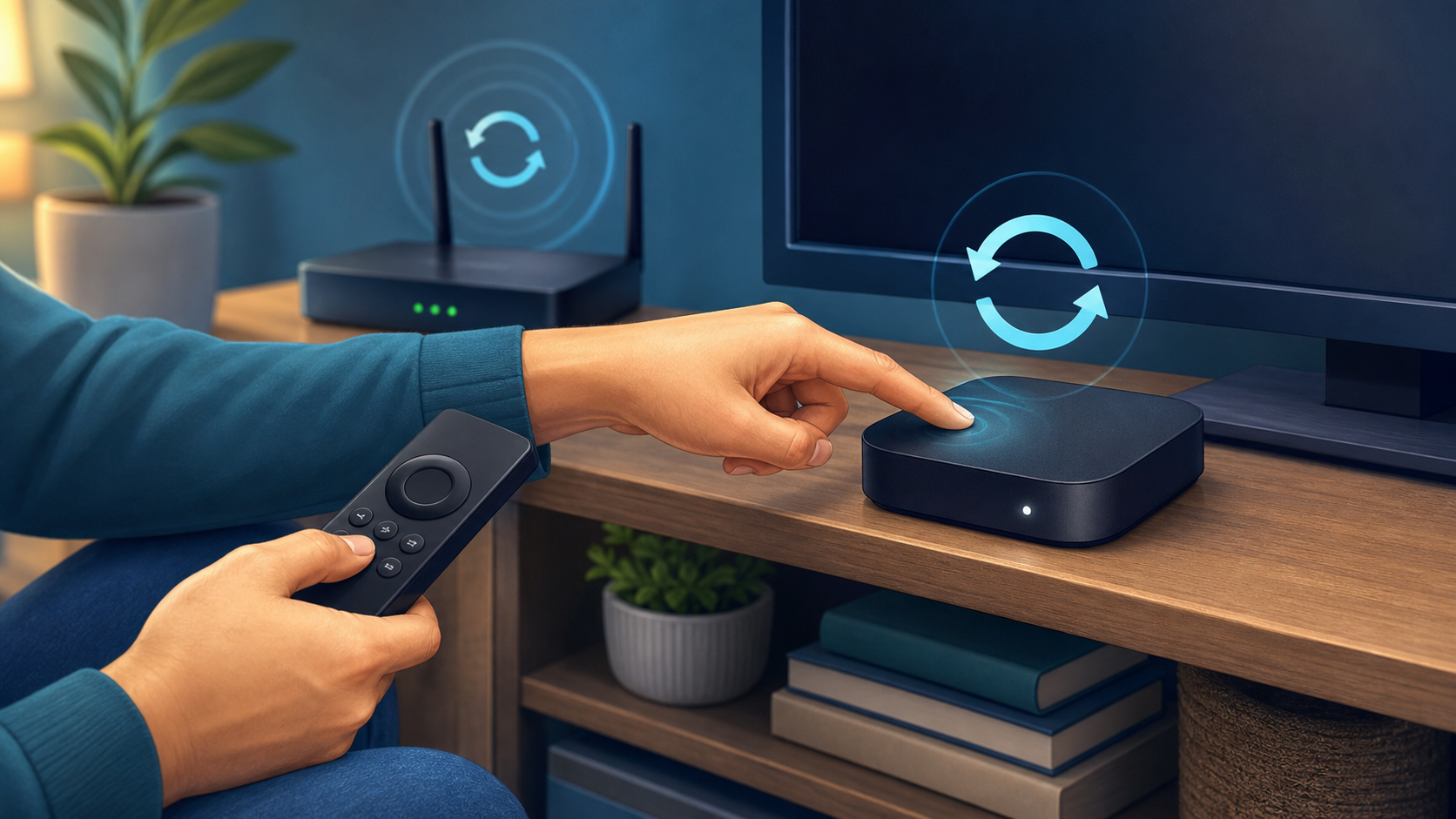
For Star IPTV-specific device steps, use the site’s setup guide and confirm that every entered URL, username, and password comes from the provider’s official message or account channel.
Check account, playlist, and service issues
Re-enter details only when you can verify the source
A copied space, an outdated portal address, or an expired password can cause a blank playlist or authorization error. Compare the current provider-issued details with what is in the player. Do not post a full playlist URL, password, device identifier, or order number in a public forum. If the information is unclear, ask support to resend the approved setup instructions through its official contact channel.
Check concurrent-device limits
Some subscriptions allow a limited number of active streams. If a household member is watching elsewhere, stopping that session may be enough to restore playback. A player installed on several devices is not necessarily authorized for several simultaneous streams. Consult the provider’s account terms or support team instead of assuming a limit.
Use a narrow test case
Try one live channel, one on-demand item, and one other device on the same authorized account. This gives a useful result:
If all three fail on every device, the account or service may need attention.
If only one device fails, focus on that device, player, and its network connection.
If only one item fails, report the item name and approximate time instead of resetting all settings.
Before purchasing, renewing, or requesting a change, review the service’s live pricing page, FAQ, and refund policy. Plan availability, device support, and policy terms can change, so the published page should take priority over a generic article.
When to contact support—and what to send
Contact the provider after you have completed the short checks and the issue still persists, especially for an authorization error, a current-account problem, or a recurring issue affecting one specific authorized stream. Use the provider’s official contact route rather than an unsolicited social-media account or a third-party “activation” service.
A concise support request should include:
the device model and operating-system version;
the player app name and version;
the exact error text or a redacted screenshot;
the approximate time and time zone;
whether another device or another authorized item works; and
whether you tested Wi-Fi and, if possible, Ethernet.
Do not send your password, full playlist URL, payment-card details, or a public copy of private account data. Star IPTV lists its official contact page for support inquiries.
Bottom line
When IPTV is not working, test the connection, device, player, and account in that order. Start with a narrow, repeatable symptom; use official app sources and provider channels; and avoid sharing private credentials while troubleshooting. That approach solves common local issues quickly and gives support the information needed to investigate the rest.
Frequently asked questions
Why is my IPTV not working when my internet seems fine?
A speed test can look normal while the TV has weak Wi-Fi, the player is outdated, another device is using the account, or one stream has a problem. Test another app on the same TV, then try a different authorized item. If possible, compare Wi-Fi with Ethernet before changing account settings.
What should I do first when IPTV keeps buffering?
Pause competing downloads, restart the player, and test another authorized stream. If buffering continues, test the same device near the router or on Ethernet. A wired test helps distinguish Wi-Fi interference from a player, account, or service issue.
Why does IPTV work on one device but not another?
The failing device may have an outdated app, low storage, a weaker network connection, an incorrect clock, or a stale saved login. Update the player through an official source, restart the device, and compare the account details only if you can verify the provider-issued setup information.
Can a router restart fix IPTV?
It can help when several devices have lost internet access or the local connection is unstable. Restart the player and TV first. Restart the router only when the evidence points to the network, then allow it to reconnect fully before retesting.
Is Ethernet better than Wi-Fi for IPTV troubleshooting?
Ethernet is a useful diagnostic comparison because it avoids much of the interference and range variation of Wi-Fi. If playback improves only when wired, focus on Wi-Fi placement, signal strength, and household traffic. It does not prove that every service-side problem is a Wi-Fi problem.
Why is my IPTV channel list empty?
An empty list can result from a wrong or expired login, a changed playlist or portal, an account issue, or a player that needs a refresh. Verify the source of the credentials, refresh once, and contact the authorized provider if the account still will not load.
Should I clear the IPTV app cache?
Try the app’s own reload option and a device restart first. Clearing cache can help with an outdated list or app behavior. Clearing app data is more disruptive because it may remove saved configuration, so keep only authorized setup details available before doing it.
How much internet speed do I need for IPTV?
There is no universal IPTV number because stream quality and home usage vary. As a general streaming benchmark, Netflix recommends at least 3 Mbps for HD, 5 Mbps for Full HD, and 15 Mbps for 4K. Stable throughput and low Wi-Fi interference matter alongside the plan’s advertised speed.
Can I install an IPTV player from any download site?
No. Use the device’s official app store or the player developer’s official source. Unofficial mirrors and modified apps can create security, update, and credential risks. A player is separate from the content service, so install only software you trust and use it with authorized access details.
Can I use an IPTV player without a subscription?
A player can often open a permitted personal playlist or authorized provider account, but it does not include channels by itself. You need rights to the content you view and must follow the provider’s and platform’s terms.
What should I send IPTV support?
Send the device and app version, the exact error, the approximate time and time zone, and the result of one or two simple tests. Do not send a password, full playlist URL, or payment details in a public message. Use the provider’s official support route.
Is IPTV legal in the United States?
IPTV is a delivery method, not a blanket legal status. Whether access is permitted depends on the content rights, the service, the territory, and your subscription terms. Use only programming you are authorized to receive and consult qualified legal advice for a situation-specific question.