Using IPTV on more than one screen is usually straightforward; the catch is that installing a service on several devices is not the same as watching on several devices at the same time. This guide explains how to plan an authorized IPTV multi-device setup, avoid connection-limit surprises, and keep a Canadian home network ready for live TV.
Editorial approach: this is a compliance-first setup guide. Use IPTV players only with services, playlists, and streams you are permitted to access.
First, separate installation from simultaneous streams
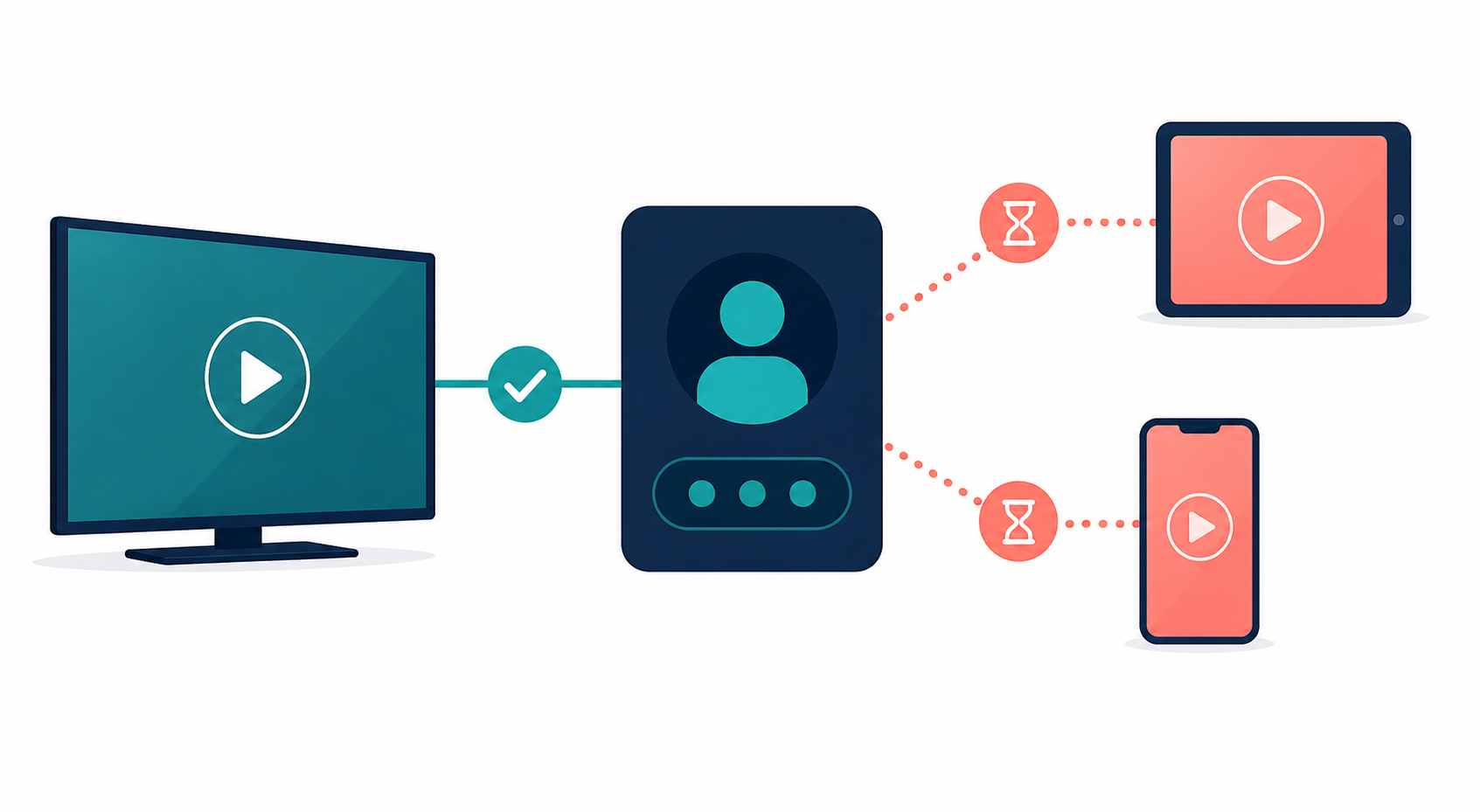
“IPTV multiple devices” can describe two very different things. The first is installation: you sign in to the same authorized service on a TV, phone, tablet, laptop, or streaming device. The second is concurrency: two or more people press play at the same time. A subscription may allow the first while allowing only one active stream for the second.
That distinction matters in a household. A TV in the living room and an iPad in the kitchen can both be configured successfully, yet the second viewer may get an error or playback interruption when the first stream is active. The practical question to ask a provider is not merely “How many devices are supported?” Ask: “How many simultaneous streams or connections does this plan include?”
| Question | Why it matters | What a clear answer looks like |
|---|---|---|
| Can I install the player on several devices? | Lets you move between TV, mobile, and computer. | A list of supported device types and player requirements. |
| How many streams can run at once? | Determines whether two viewers can watch independently. | A number of active connections included with the plan. |
| Can I add a connection? | May avoid buying a separate account for a second regular viewer. | Price, process, and any household-use conditions in writing. |
| Which login format is supplied? | Players may accept a portal login, an M3U playlist, or another authorized format. | Setup instructions that match the chosen player and device. |
What Canadian viewers should check before using IPTV on multiple devices
IPTV describes how video is delivered over an internet connection; it does not, by itself, establish whether a particular channel or stream is authorized. An IPTV player is a viewing tool and does not include channels on its own. Use provider credentials only for content you are entitled to receive, and keep them private.
For Canadian viewers, distribution rights are especially important. The CRTC explains that online availability can depend on the rights held for a particular territory. A program may therefore be unavailable in Canada even if it can be viewed elsewhere. Do not treat a second device, a different player, or a network workaround as a substitute for authorized access.
Before purchase or renewal, read the provider’s terms, refund policy, and device/concurrency policy. For context, the CRTC also describes IPTV as television delivered through a high-speed internet connection and provider access, alongside other ways Canadians watch TV in its consumer overview.
Plan your multi-device setup before entering credentials
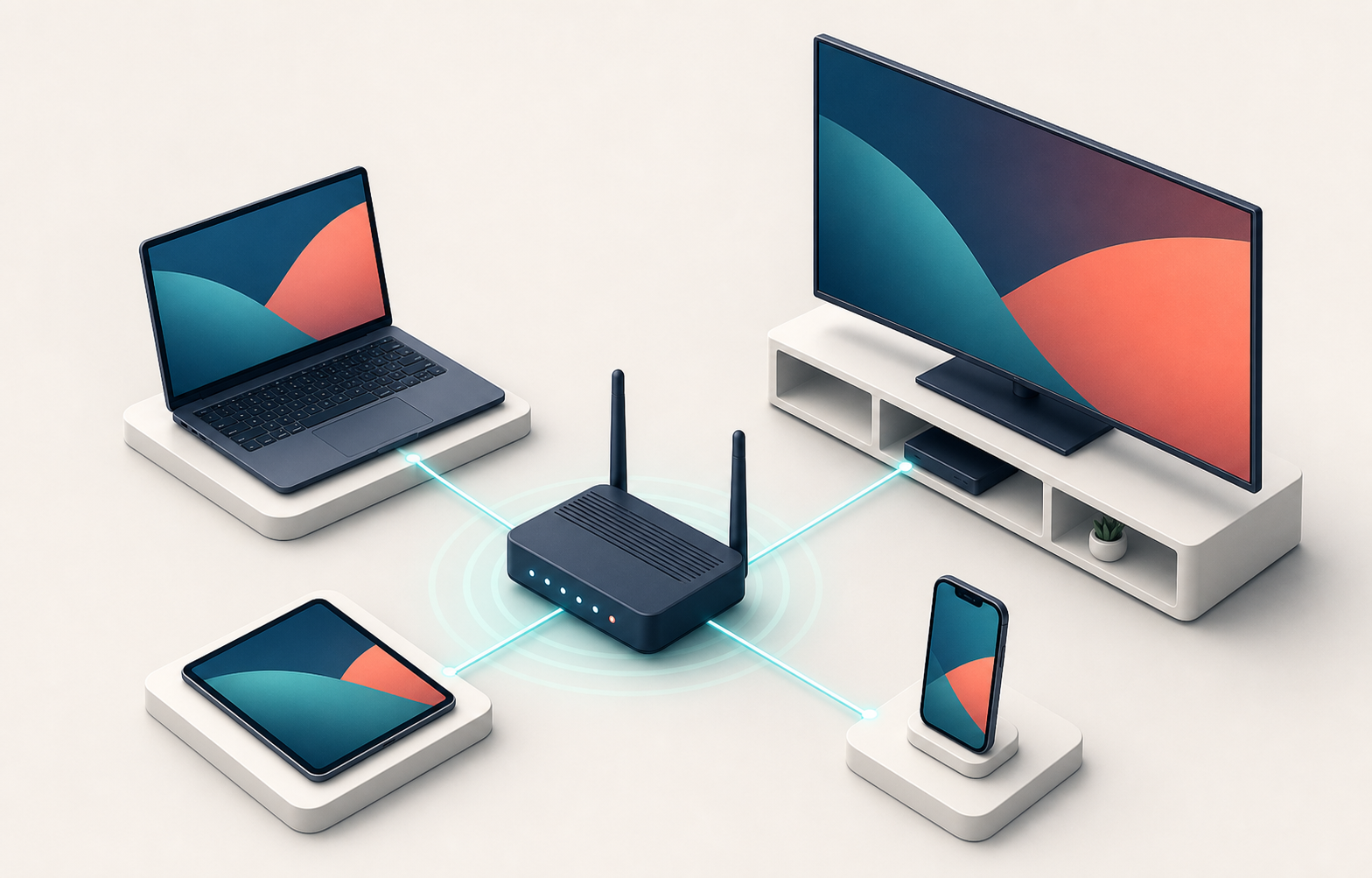
Make a short device list: the primary TV, any second TV, mobile devices, computers, and any travel device. Next to each one, note its operating system, the player you intend to use, and whether it needs to watch at the same time as another screen. This turns a vague “family plan” request into a connection-count decision.
Choose the primary screen and secondary screens
The main television generally deserves the most stable connection. If possible, connect its streaming device or smart TV by Ethernet. Phones and tablets are often best kept as flexible secondary screens on 5 GHz or a newer Wi-Fi band close to the router. A laptop can be useful for travel or account checks, but it is also easy to forget running in the background; close players you are not using.
Use a player that matches the device
Players vary by platform and by the login methods they accept. Start with the device’s official app store or the player publisher’s official instructions. Enter only credentials supplied by an authorized provider; do not install unverified software or use playlist links from unknown sources. If a player asks for a portal URL, playlist URL, or username and password, copy it carefully and do not post it in support forums or shared family chats.
Know the account rule before you share a login
“More devices” should not mean “unlimited account sharing.” A provider’s terms may limit use to a household or may require an added connection for each concurrent stream. Treat a connection as a viewing seat: one seat can be registered on multiple compatible devices, but only the number of purchased seats can normally play at once. Confirm the rule before giving access to another person.
How to use IPTV on multiple devices, step by step
Confirm your subscription’s concurrent-stream allowance. Check the plan record or ask support for the number of active connections included. If two people will watch at once, request a plan or add-on that explicitly permits two simultaneous streams.
Choose one approved player per device type. On a smart TV, streaming box, phone, tablet, or computer, use a player available from the official platform store or the player developer’s official source.
Install the player without changing device security settings unnecessarily. Avoid sideloaded or modified applications. Keep the operating system and player current.
Sign in with the authorized provider details. Use the credential format documented for that player. Double-check punctuation and spacing in URLs; a tiny copy error can look like a service failure.
Test the primary TV first. Play a permitted channel for several minutes, open the program guide if available, and check that audio and picture are stable.
Add the secondary device. Stop playback on the first device if your plan has one active connection, then repeat the documented sign-in steps on the second device.
Run a two-screen test only if your plan includes it. Start two permitted streams at the same time. If the second stream is rejected, stop it and verify the connection limit rather than repeatedly retrying.
Record the setup privately. Note the device name and player used, but do not store passwords in an unprotected note or share them outside the permitted users.
For provider-specific device instructions, Star IPTV publishes a setup guide. Its FAQ says that accounts support one active stream by default and that additional connections or separate subscriptions may be needed for simultaneous viewing. Verify the current rule with the provider before ordering, because plans and policies can change.
Plan your bandwidth for more than one active stream
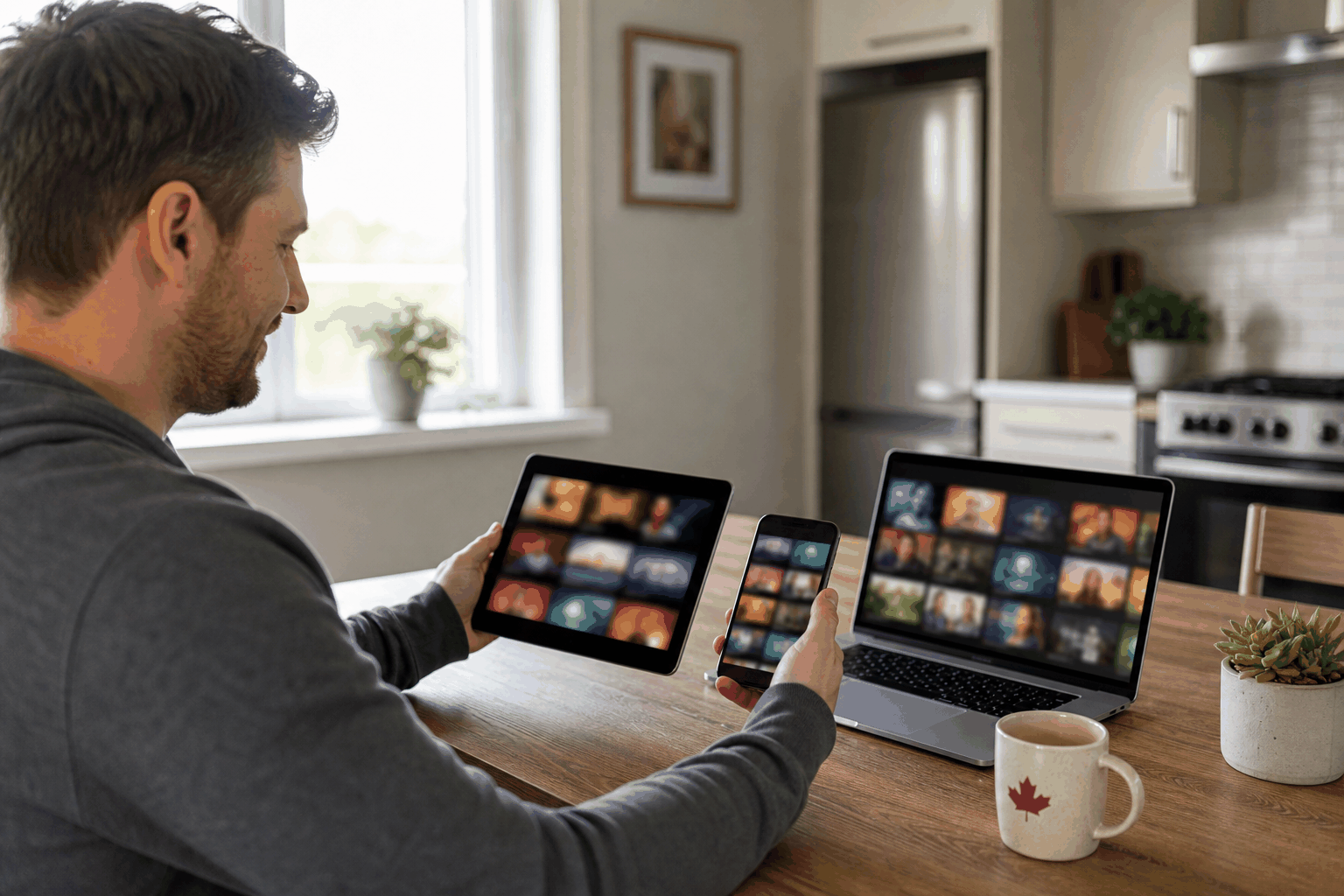
Bandwidth is shared across the home, not assigned permanently to the TV. The useful calculation is: active video streams + other household activity + headroom. A live TV stream may be affected by video calls, cloud backups, console downloads, or a second stream starting during a game. Wi-Fi signal quality, congestion, and router placement can matter as much as the internet package’s advertised speed.
| Household situation | What to plan for | Practical response |
|---|---|---|
| One TV stream and casual browsing | A stable connection with spare capacity. | Place the router openly; use Ethernet for the TV when practical. |
| Two authorized live streams | Enough sustained capacity for both streams plus normal household traffic. | Test both screens during peak evening use; consider wired connections for fixed TVs. |
| 4K viewing on one or more screens | More headroom and stronger Wi-Fi/Ethernet consistency. | Reduce other heavy downloads; choose quality settings the network can maintain. |
| Streaming while working from home | Protection from video-call and backup contention. | Schedule large backups or downloads outside viewing hours. |
There is no single speed number that guarantees every home will be trouble-free: the stream quality offered, number of viewers, local Wi-Fi conditions, and other traffic all change the result. Test your own household at the time it is busiest. A wired TV that remains stable while a nearby phone buffers points to Wi-Fi coverage, not necessarily the IPTV player.
Troubleshooting when IPTV works on one device but not another
Second device stops or refuses playback
First, stop playback on the other device and try again. If the second screen then works, the likely issue is the active-connection allowance, not the device. Check the account policy and, if appropriate, ask the provider about an authorized additional connection. Do not attempt to bypass the limit.
One room buffers while the main TV is fine
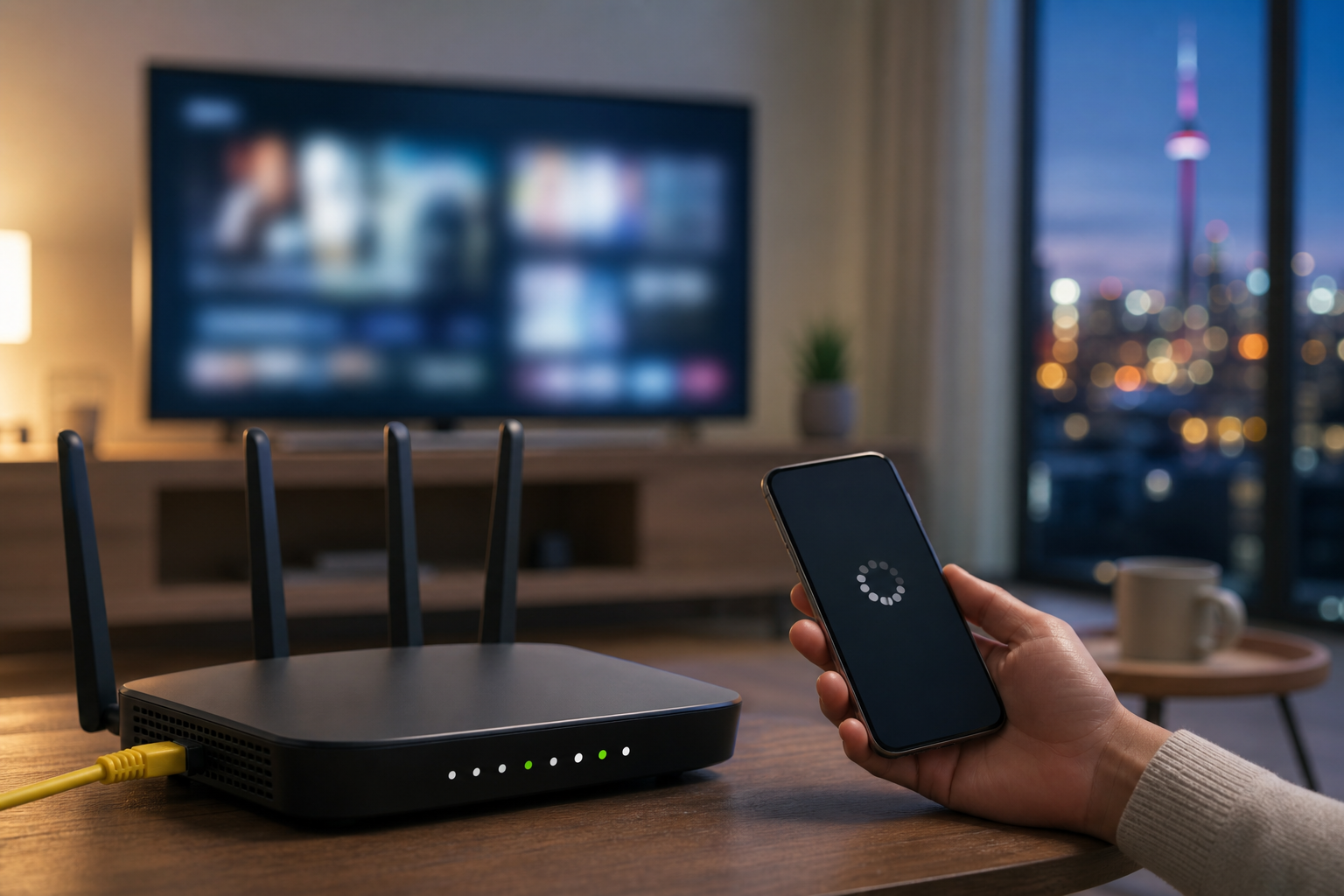
Move the mobile device closer to the router, switch to a less congested Wi-Fi band if your equipment supports it, and pause large downloads. Restarting the router and player can clear a temporary issue. For recurring problems, compare the result on Ethernet and Wi-Fi before changing a plan.
Credentials work on a phone but not a TV
Confirm that the TV player supports the credential format you received and that the device clock and software are current. Re-enter the server or playlist address carefully rather than copying a shortened or altered link. If the provider gives device-specific instructions, follow those instead of a generic guide.
For more network checks, see Star IPTV’s buffering troubleshooting article. Treat its speed guidance as a starting point to test at home, not as a universal guarantee.
A short checklist before choosing an IPTV multi-device plan
Get the exact number of simultaneous streams in writing.
Confirm which devices and official player sources are supported.
Ask whether an additional connection is available and what it costs.
Read the terms, privacy, refund, and support information before payment.
Use only authorized channels, playlists, and credentials that are valid in Canada.
Test the primary TV and the intended second screen during normal household use.
If Star IPTV is under consideration, review its current plan details, FAQ, and refund policy before purchase. These pages—not this general guide—should be the source of truth for current product terms and connection options.
Frequently asked questions about IPTV multiple devices
Can I use one IPTV subscription on multiple devices?
Often, yes: a provider may let you install a compatible player and sign in on several of your devices. That does not automatically allow all of them to play at once. Confirm both device compatibility and the number of simultaneous connections included with the subscription.
What does “one active stream” mean?
It means one device can play a stream at a given moment. You may be able to sign in on a TV and phone, but starting playback on the second device can stop or reject the first. Ask whether an extra connection can be added for simultaneous household viewing.
How many devices can I connect to IPTV at once?
The answer depends on the service and plan. “Supported devices” is a compatibility list; “connections” or “simultaneous streams” is the number that controls concurrent playback. Get the active-stream number in writing before relying on two screens at once.
Do I need a different IPTV player on every device?
Not necessarily, but the same player may not be available on every platform. Choose a reputable player available through the device’s official store and make sure it accepts the authorized login method your provider supplies. Follow the provider’s device-specific setup instructions where available.
Can I watch IPTV on a smart TV and phone at the same time?
Only if the subscription explicitly includes at least two simultaneous streams or authorized connections. The devices themselves do not determine the limit. If a second stream fails, stop it and verify your plan rather than repeatedly signing in and out.
Is IPTV legal to use in Canada?
The delivery technology is not the deciding factor. Use services and streams you are authorized to access and respect the territorial distribution rights that apply in Canada. An IPTV player is only a tool; it does not make an unauthorized source authorized.
How much internet bandwidth do two IPTV streams need?
It depends on stream quality, the provider’s delivery method, and other traffic in the home. Plan for both streams plus headroom for browsing, calls, and downloads. Test during busy evening hours, and use Ethernet for fixed TVs when possible.
Why does IPTV buffer on the second device?
It may be a Wi-Fi coverage issue, competing household traffic, limited broadband capacity, or a simultaneous-stream restriction. Test the second device close to the router, stop heavy downloads, and compare wired and Wi-Fi results. Check the account limit if playback is rejected rather than merely slow.
Should I share my IPTV login with relatives?
Only if the provider’s terms expressly allow that use. Login sharing can expose credentials, create connection conflicts, and violate the account rules. A legitimate additional connection or separate subscription is the clearer choice when another household member needs regular independent viewing.
Can I use IPTV when travelling outside Canada?
Availability depends on the provider’s terms and the rights held for the place where you are watching. Ask the provider before travelling and do not try to bypass territorial restrictions. Bring only devices and accounts that you are authorized to use.
What should I ask before buying an IPTV multi-device plan?
Ask for the simultaneous-stream allowance, supported device list, accepted player/login methods, availability of extra connections, refund terms, and support route. Also verify that the content you intend to watch is authorized for you in Canada.
What is the safest way to set up IPTV on another device?
Install a compatible player from the official device store, use only provider-issued credentials, and follow the provider’s written setup instructions. Keep the device current, avoid unknown downloads, and test one screen at a time if your plan has a single active connection.
What does IPTV multiple devices mean for a household?
It means planning both where the service can be installed and how many permitted streams the household needs at one time. The first question is about compatible screens; the second is about the subscription’s active-connection allowance and your home network capacity.