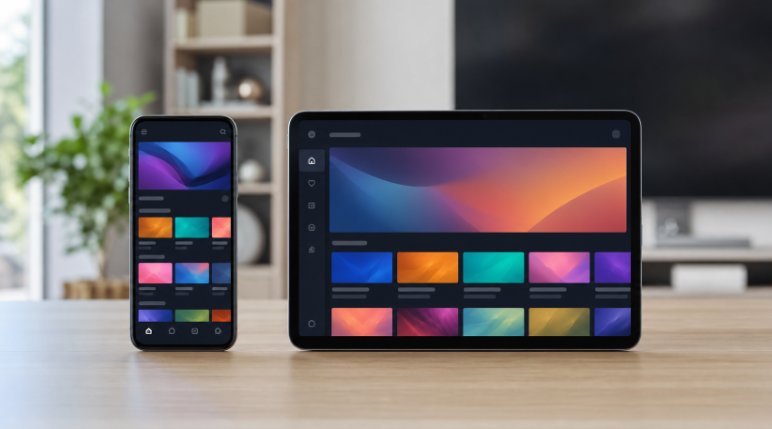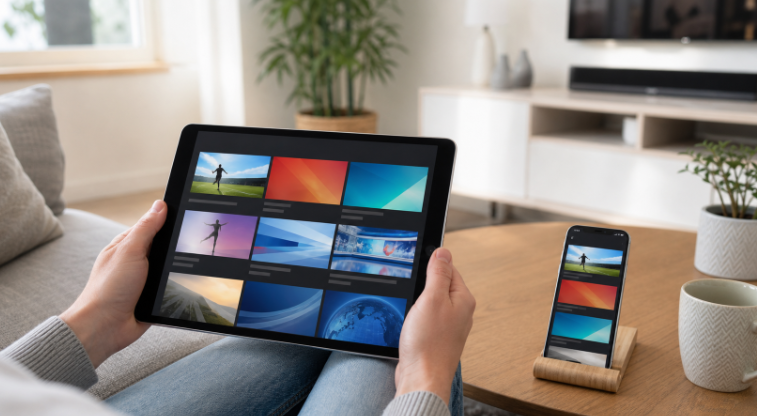
Watching IPTV on iPhone or iPad can be convenient when you are using a legitimate service or streams you are allowed to view. The practical part is simple: choose an App Store player that works with your provider, enter only the account details the provider gives you, and test playback on your own network. The important part is knowing what each piece does—and checking the service before you pay.
This guide is written for viewers in Canada. It explains a responsible setup for IPTV on iPhone and iPad without recommending unverified playlists, altered apps, or ways to bypass rights or regional restrictions.
Before you start: the short checklist
An iPhone or iPad with a current, supported version of iOS or iPadOS.
A stable Wi-Fi connection for the first setup and for longer viewing sessions.
An IPTV player obtained from the App Store, rather than an unknown download source.
Credentials, a portal address, or a playlist link supplied by a service you are authorized to use.
Enough free storage for the player and any permitted downloads or offline material.
Do not treat a player as a channel package. A player is an app that displays a stream; it does not give you rights to the programmes inside it. Likewise, a username, playlist, or portal address should come from the service you chose—not from a public list shared by strangers.
Player, provider, and content: know the difference
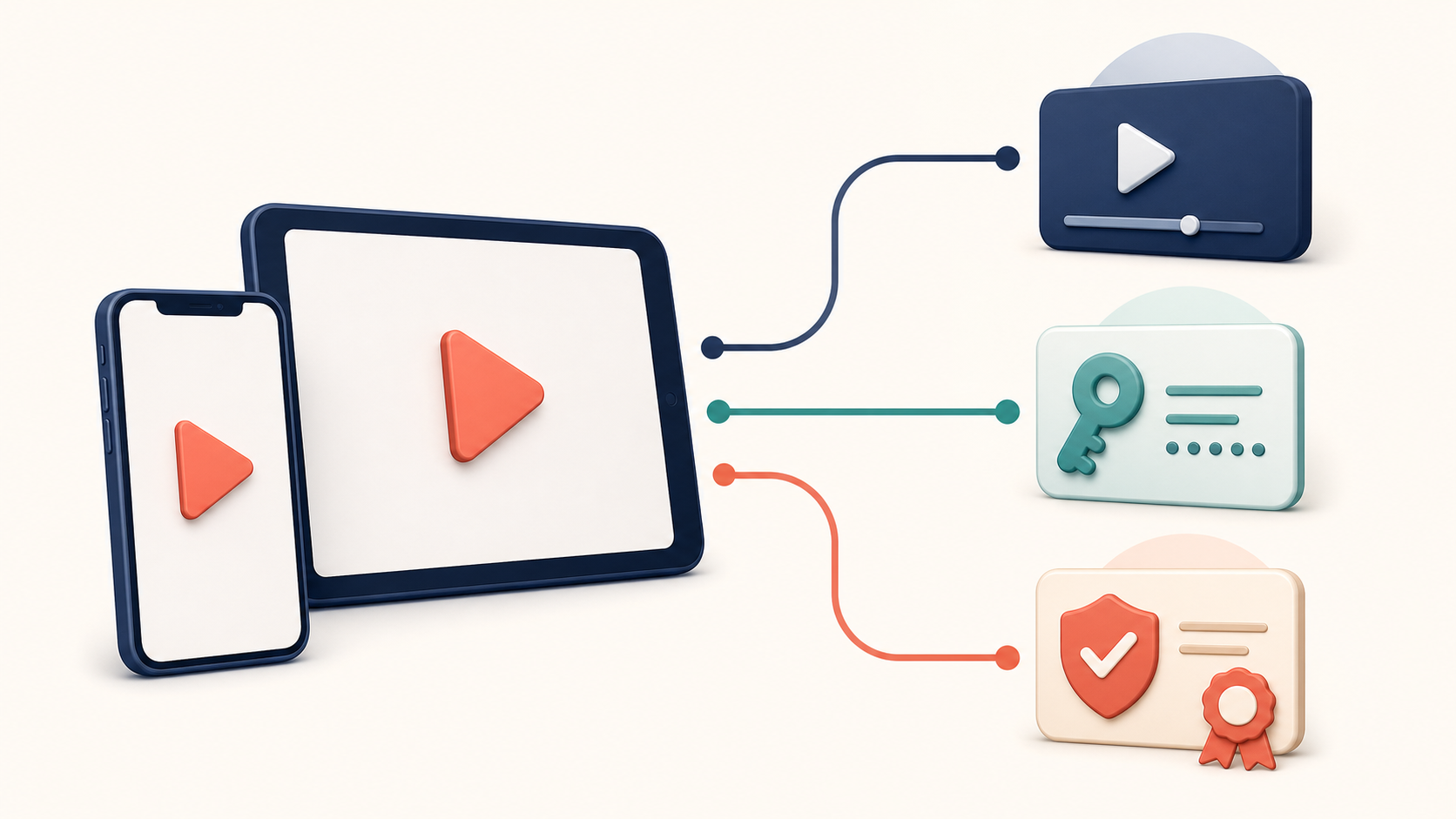
Most setup confusion disappears once these three parts are separated. The player runs on your iPhone or iPad. The provider supplies the account details or authorized stream access. The content is the live or on-demand programming the provider has the right to make available under its terms. A problem with one part does not automatically mean the others are at fault.
How to set up IPTV on iPhone or iPad
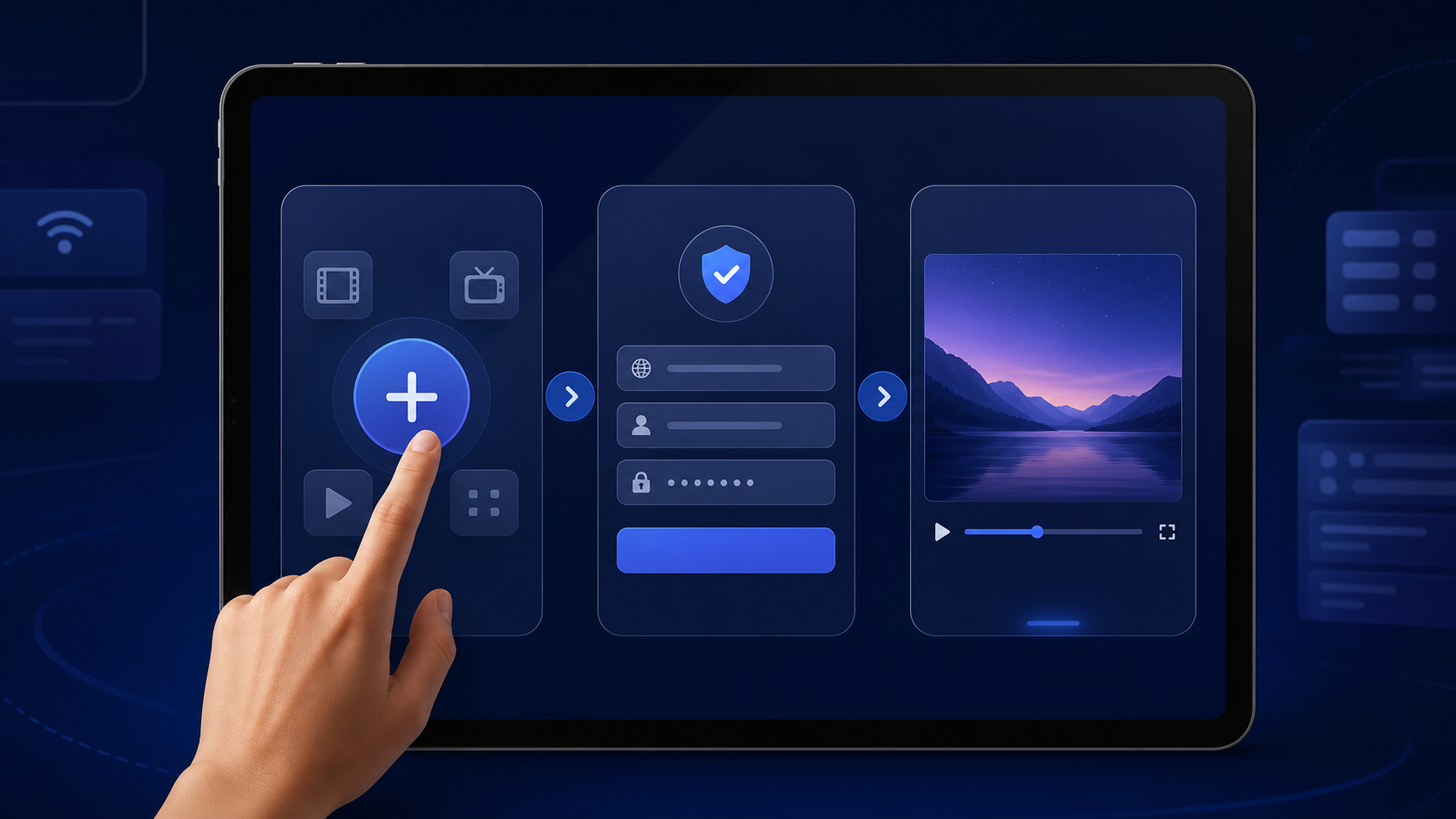
The exact labels vary between players, but the setup sequence is usually similar. Follow your provider’s own instructions when they differ from a generic app screen.
Confirm the service and your access details. Read the plan terms, check the device limit, and keep the order email or account record available. Do not share a login outside the permitted household or device count.
Install a reputable player from the App Store. Apple explains that you can review and download apps through the App Store; availability can change by region and device. See Apple’s Canadian App Store guidance for current settings and restrictions.
Open the player and choose its approved sign-in method. Depending on the service, that may be a username and password, a provider portal, or a playlist URL. Enter the details exactly as supplied by your authorized provider.
Name the connection privately. Use a neutral label on a shared device and avoid putting account details in notes, screenshots, or public messages.
Let the guide load, then test a few permitted streams. Check live playback, audio, channel changes, subtitles if applicable, and the electronic programme guide. A player can take a moment to index a large library.
Use trusted sources for maintenance. Keep iOS/iPadOS and the player current through normal device settings and the App Store. Do not install altered copies or configuration profiles to force a player to work.
If you are evaluating a service, do the device setup before committing to a longer term. Test the features you care about at the times you normally watch. The same approach is covered in stariptv.shop’s guide to testing an IPTV trial.
How to choose an iOS player without overcomplicating it
There is no universal “best” player. A sensible choice is the one available to you, compatible with your authorized service, and comfortable to use on a small screen. Before adding account details, look at:
Sign-in compatibility: the player must support the connection method the provider actually offers.
iPhone and iPad layout: channel browsing, search, captions, and full-screen controls should be easy to reach on both devices.
Privacy: review the App Store privacy label, the player’s privacy policy, and any requested permissions. A player generally should not need unrelated device access to play a stream.
Support and maintenance: check whether the app is actively maintained and whether the developer gives a real support route.
Household needs: consider AirPlay support, parental controls, language preferences, subtitles, and permitted concurrent devices.
Skip any player that asks you to use untrusted download links, profiles, or credentials from a third party. Apple’s guidance on App Store controls is a useful reference when you manage a child’s device or want to limit app installations.
Wi-Fi, cellular data, and playback quality
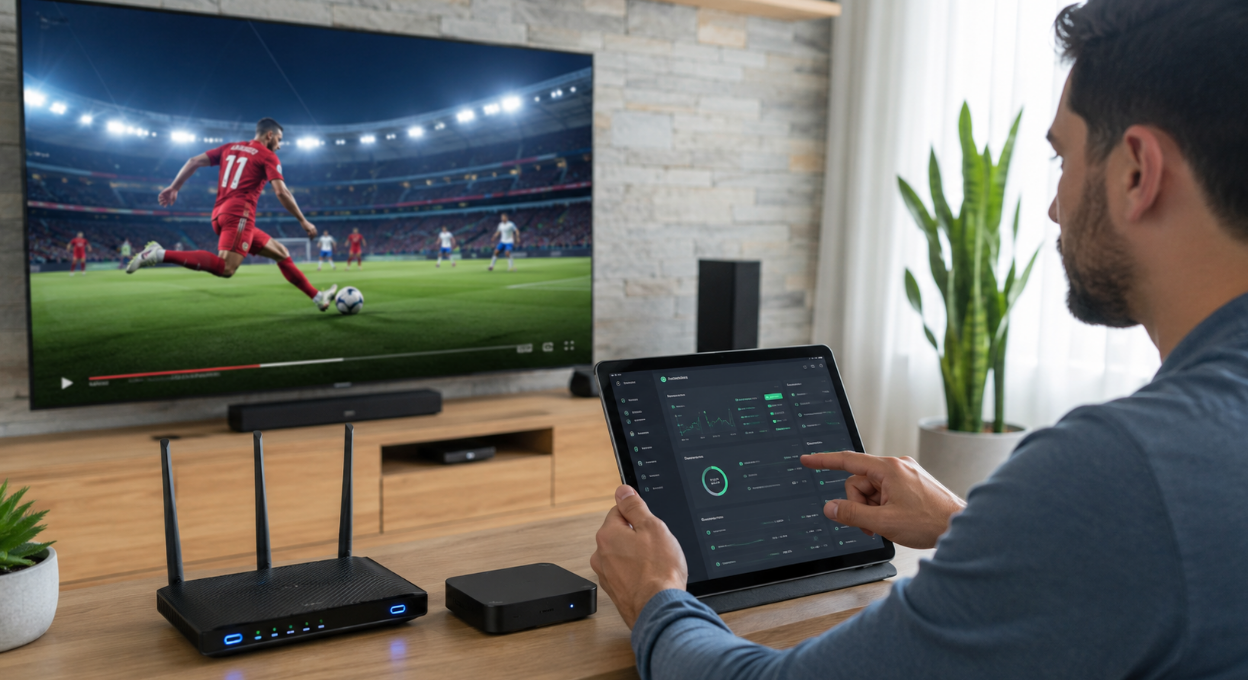
For IPTV on iPhone and iPad, a steady connection matters more than a single speed-test result. Start on home Wi-Fi, move closer to the router if playback stalls, and pause other high-bandwidth tasks while you troubleshoot. On cellular data, check your plan’s data allowance and any streaming settings before watching for long periods.
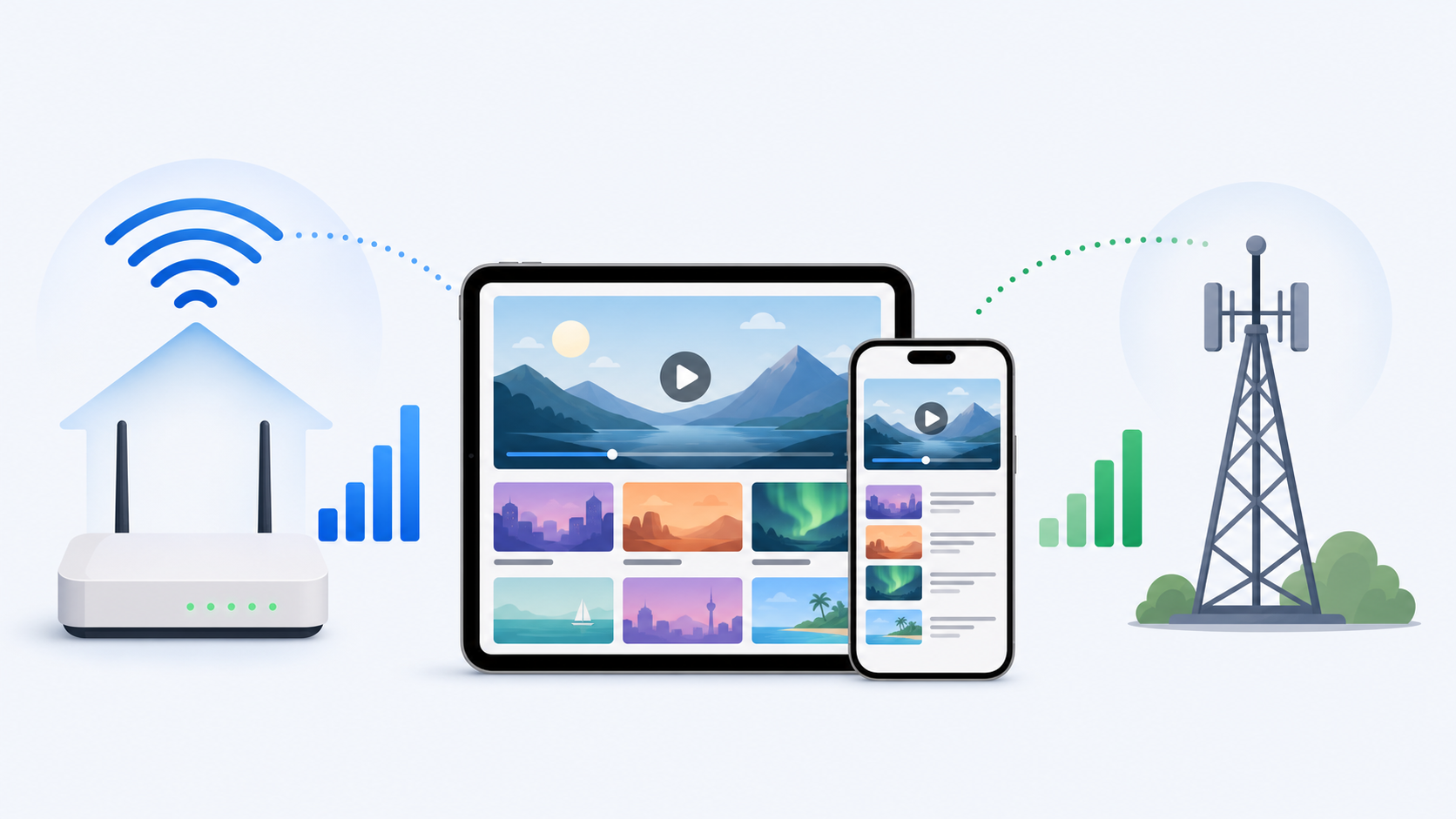
When a stream buffers, make one change at a time: verify that other apps work, restart the player, try a different authorized stream, and test again on Wi-Fi. If the issue persists, note the time, device, player version, and affected stream before asking the provider for help. For a broader diagnostic checklist, see how to troubleshoot IPTV buffering and how to assess internet speed for IPTV.
A note for viewers in Canada: use authorized services
IPTV describes a delivery method, not a blanket permission to watch any channel or programme. Canadian copyright guidance explains that rights holders have exclusive rights that can include communicating works to the public, and that using protected content without authorization can raise infringement issues. The Canadian Intellectual Property Office also notes that only a court can decide whether infringement occurred. Read its copyright infringement overview if you need the official background.
In practical terms, use a provider only for programming it is authorized to deliver to you, respect subscription and device terms, and do not use tools to defeat technical protections or region limits. This is general information, not legal advice. If the rights status of a service or a specific programme is unclear, ask the provider for clarification or seek qualified legal advice.
Considering stariptv.shop for IPTV on iPhone
stariptv.shop publishes pages for device setup, plans and pricing, frequently asked questions, and contact support. Those pages can help you establish whether the connection method, plan duration, and support path match your iPhone or iPad needs.
Before ordering, read the current plan details and the refund policy closely. Confirm which devices are included, whether your preferred iOS player is supported, what happens if setup is unsuccessful, and whether the programming you intend to watch is authorized for your location. Prices, app availability, programme lineups, and policies can change.
Quick fixes when IPTV will not play on iPhone or iPad
FAQ: IPTV on iPhone and iPad
Can I use IPTV on iPhone?
Yes, if you use an iOS-compatible player and a service or stream you are authorized to access. The player is separate from the content service, so first confirm which sign-in method your provider supports and whether the player is available in your App Store region.
Do I need a special IPTV player for iPad?
You need a player that works on iPad and supports the authorized connection method your provider uses. Check its App Store listing, privacy information, and maintenance history. A player alone does not include channels or grant rights to content.
What details should I enter into an IPTV player?
Enter only the login, portal, or playlist information supplied by the provider you chose. Never use public playlists of uncertain origin or credentials sent by strangers. Keep account details private and follow the provider’s permitted-device rules.
Is IPTV legal in Canada?
IPTV technology itself is not a legal status. Whether viewing is permitted depends on the content source, the rights held for that content and territory, and the subscription terms. Use authorized services and streams you have permission to access. For legal questions specific to your situation, seek qualified advice.
Why does IPTV buffer on my iPhone?
Buffering can come from weak Wi-Fi, cellular congestion, other traffic on your network, player configuration, or the service itself. Test Wi-Fi near the router, restart the player, and record the affected time and stream. That gives support something concrete to investigate.
Should I use Wi-Fi or cellular data for streaming?
Wi-Fi is usually the better starting point for longer viewing because it avoids using your mobile-data allowance. Cellular can be useful when you are away from home, but check data limits, signal quality, and player settings before sustained viewing.
Can I use the same IPTV account on an iPhone and iPad?
That depends on the provider’s device and simultaneous-stream rules. Some plans allow several registered devices but only one active stream; others differ. Review the current plan terms before signing in on both devices.
Is an App Store player safer than an unknown download?
For most users, the App Store is the sensible first source because it provides a standard place to review app information, permissions, and maintenance. It does not validate the rights of every stream a user adds, so you still need to assess the service and content source independently.
What should I test before paying for a longer plan?
Test the player on your own iPhone and iPad, view at the times you normally watch, confirm the guide and accessibility features you need, and read the renewal, support, and refund terms. Do not assume a feature works merely because it is listed on a sales page.
How can I get help with a Star IPTV setup?
Start with the provider’s setup guide and contact page. Include your device model, iOS or iPadOS version, player name, and a concise description of the issue, but do not send passwords in a public message.
Sources and editorial note
Official references used for the device and rights context: Apple Support Canada: App Store settings and Government of Canada: Copyright infringement. Brand pages are linked as resources for readers to review directly; their availability, pricing, programme rights, app support, and policy terms should be confirmed before purchase.