Using IPTV on Android can be a convenient way to watch services you are entitled to use on a phone or tablet. The practical part is choosing a compatible player, installing it from a trusted source, and entering the account details supplied by your authorised provider. The important distinction is that a player is only a tool: it does not include channels or make a content source lawful.
This guide covers a general Android workflow that works across many phones and tablets. Menu names, player options, and availability can vary by device, Android version, region, and provider.
What you need before installing IPTV on Android
Get the basics ready before you install anything. This prevents the common situation where a player is installed but cannot load a playlist or sign in.
An Android phone or tablet with enough free storage and a current system update where available.
A stable Wi-Fi connection. Mobile data can work, but high-bitrate video may use a meaningful amount of data.
An IPTV player from Google Play or another official developer source that you trust.
Valid credentials, a portal address, or a playlist URL supplied by a service you are authorised to access.
Permission to view the streams in your location and under the provider's subscription terms.
Keep the account details private. A player may offer more than one sign-in method, such as a provider login, portal login, or playlist URL. Use the format your provider explicitly sends; do not guess at server addresses or copy credentials from unverified sources.
Step 1: Install an IPTV player from a trusted source
Open the Google Play Store on your Android phone or tablet.
Search for the player your provider recommends, or select a reputable compatible player after checking its developer, permissions, privacy information, and recent updates.
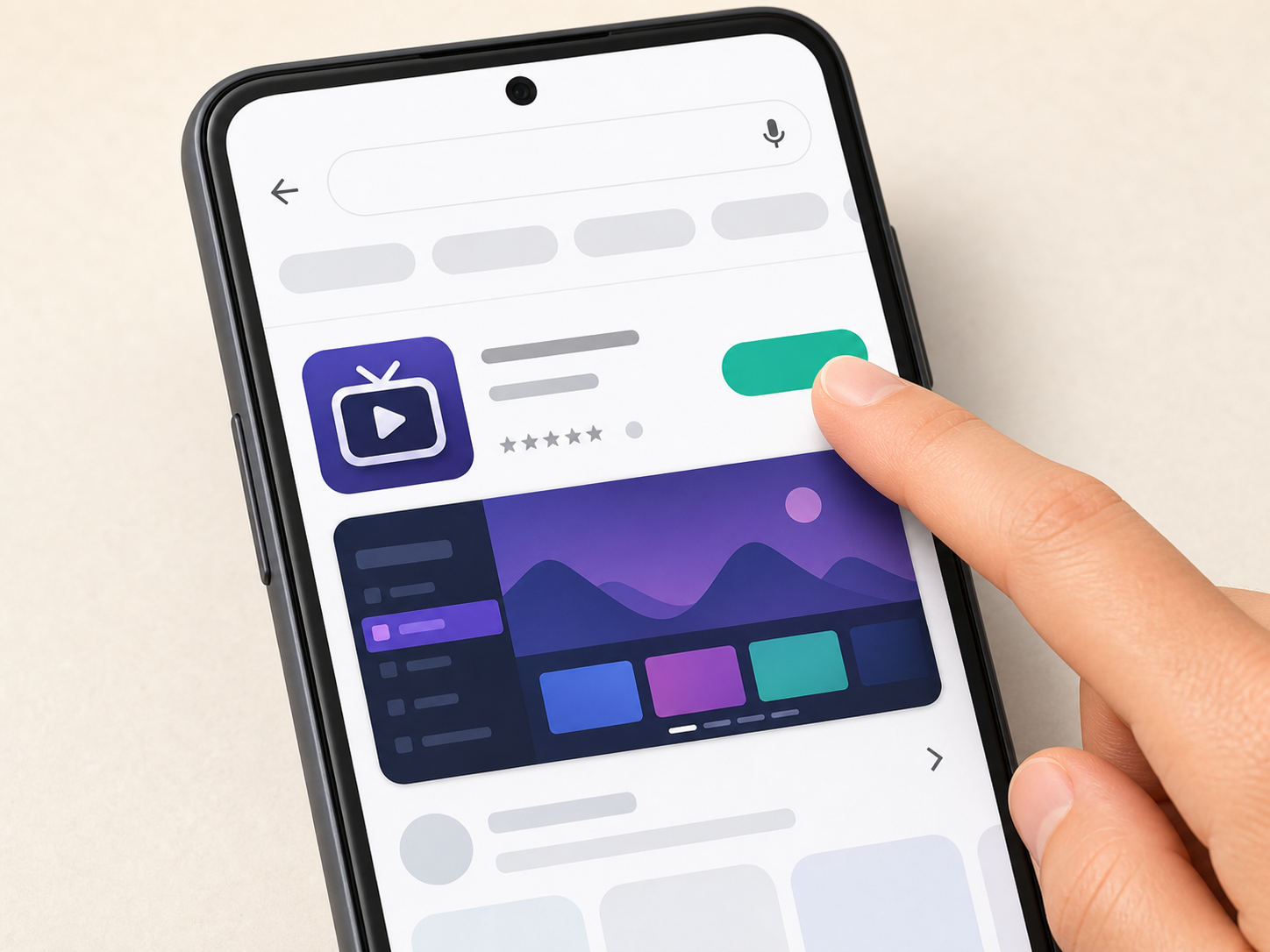
Open the app listing, confirm it is the intended app, then select Install.
When installation finishes, open the player and review any requested permissions. A media player should not need unrelated permissions to play a network stream.
Prefer the official store or the developer's official site. Avoid APK mirrors, “modified” players, and downloads promoted as a way to obtain unlicensed channels. Google explains how to keep Android apps up to date in its official Google Play Help guidance; updates can improve security and stability.
Step 2: Add an authorised IPTV service to the player
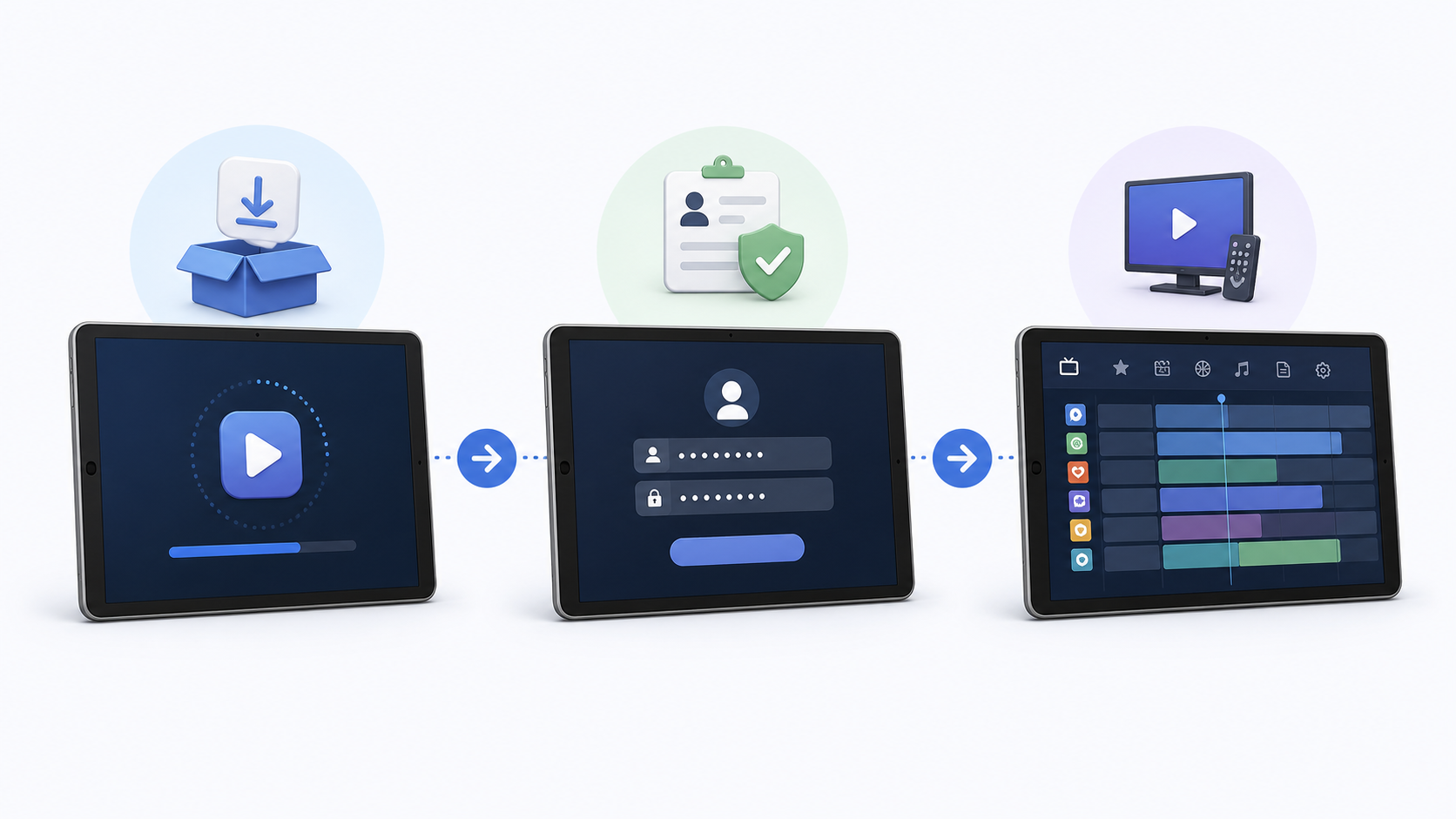
Open the player and look for a setup action such as Add playlist, Add user, or Sign in. The exact label differs by app. Enter only the information your provider supplied through its official support channel.
| Provider information | What it usually means | What to check |
|---|---|---|
| Playlist URL | A link the player uses to load your permitted channel list. | Paste it exactly and keep it private. |
| Server or portal URL | The address used with your account login in supported players. | Use the URL sent by the provider, not a web-search result. |
| Username and password | Account credentials for the specific subscription. | Check spelling and avoid sharing them. |
| EPG address | Optional programme-guide data, if your authorised provider offers it. | Add it only when the player and provider document the option. |
After saving, give the player time to synchronise. A large playlist may take longer than a small one. If the app shows an error immediately, re-check the login method and every character in the supplied URL before trying again.
Stariptv.shop’s Android setup guide describes using provider-supplied credentials or an M3U URL in a compatible player. For service-specific steps, use the instructions sent with your account and the site’s FAQ rather than relying on generic screenshots.
Step 3: Make IPTV on Android comfortable to use
On a phone
Start with one channel to make sure playback works, then explore the player’s favourites, picture-in-picture, casting, or subtitles only if your phone and the app support them. Landscape orientation usually gives the most usable video view. If playback is stable on Wi-Fi, decide whether you want to allow mobile-data streaming in the app.
On a tablet
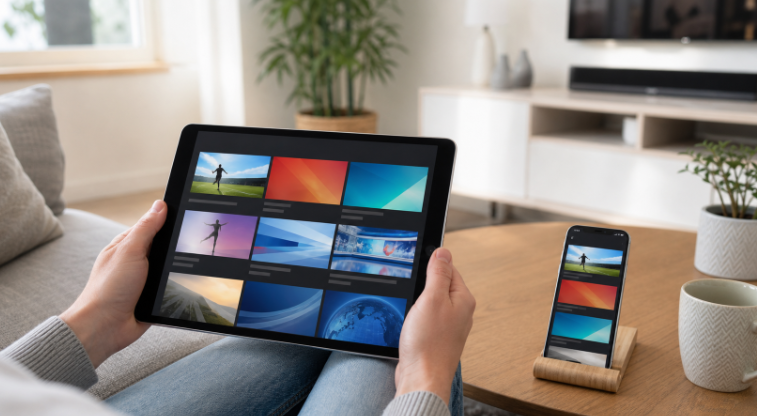
A larger screen is useful for browsing a guide or reading programme information. Turn on landscape mode before opening a channel list, and consider keeping the device on charge for long viewing sessions. Some players remember different display, audio, or subtitle preferences per device, so set them directly on the tablet rather than assuming phone settings will transfer.
Keep the player current
Updates may change layouts or fix playback issues. In Google Play, open your profile, choose Manage apps & device, then review available updates. The exact steps are documented by Google Play Help.
What to do if IPTV will not load or keeps buffering
Start with the smallest, least disruptive checks. A problem that appears to be an IPTV issue is often a local connection, expired account, incorrect time setting, or player configuration issue.
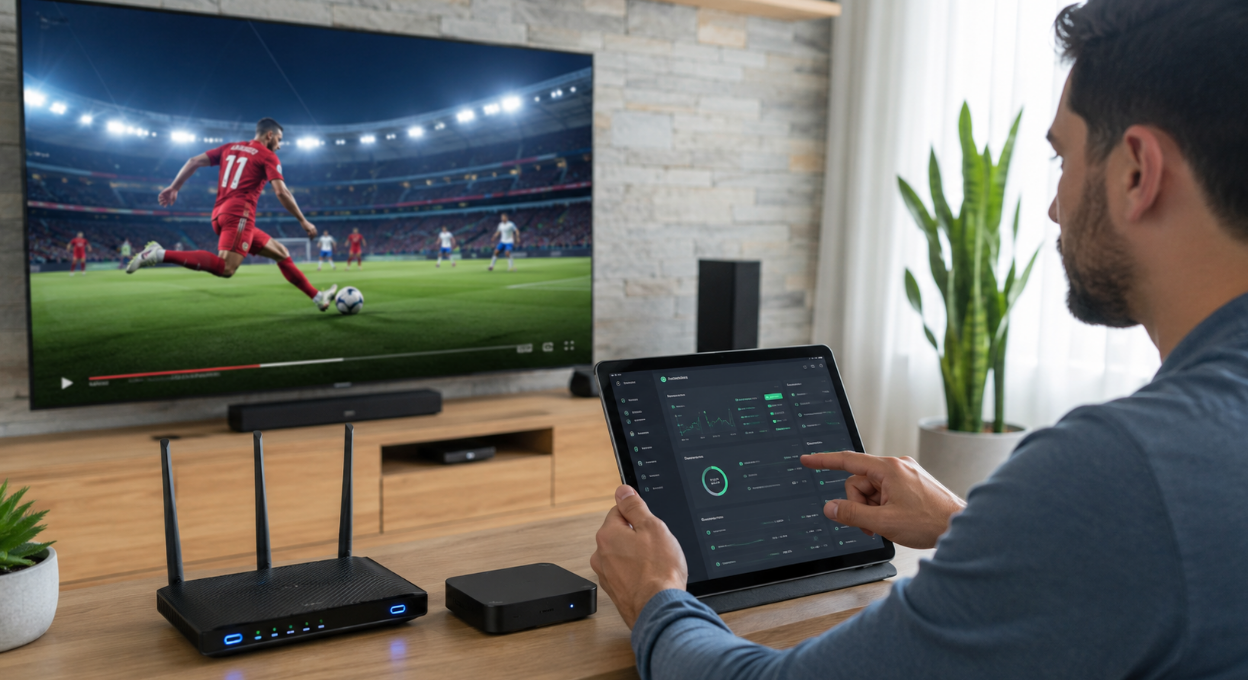
Test the connection: try another ordinary website or app on the same Wi-Fi network. If that is slow too, restart the router and reconnect the Android device.
Confirm the account details: re-enter the authorised URL and credentials carefully. Do not repeatedly attempt sign-ins if the provider has warned of account limits.
Try one stream first: if a playlist loads but a channel does not, note the time and error message for support.
Update the player and Android: install available official updates, then restart the app.
Reduce network competition: pause large downloads or video calls while you troubleshoot.
Contact the provider through an official route: include the player name, Android version, approximate location, error wording, and whether Wi-Fi or mobile data was used. Never send your password in a public comment.
For more general connection checks, see Star IPTV’s IPTV buffering guide and internet-speed article. Treat any speed target as a starting point: actual performance also depends on Wi-Fi quality, local congestion, stream bitrate, and the device.
Use IPTV responsibly on Android
An IPTV player does not provide channels by itself. Legality, availability, and subscription rights depend on the content source, your region, and the service terms. Use only playlists, provider accounts, personal media, or streams you have permission to access. A VPN, player, or alternate app does not create viewing rights or override regional restrictions.
Before ordering a subscription, read the provider’s plan details, terms, privacy information, refund conditions, and support process. If you are evaluating stariptv.shop, its pricing page, refund policy, and contact page are sensible places to review the current terms directly. Policies, app availability, channels, and regional eligibility can change.
Quick checklist
Install a player from Google Play or the developer’s official source.
Use only credentials and playlists supplied by an authorised provider.
Check the player’s requested permissions before accepting them.
Use Wi-Fi first and monitor mobile-data use if you stream away from home.
Keep the app and Android current.
Save error details for official support instead of sharing account credentials publicly.
FAQ: IPTV on Android
Can I install IPTV on any Android phone or tablet?
Many Android devices can run a compatible player, but support depends on the Android version, available storage, device performance, and the player’s own requirements. Check the player’s official listing before installing. A larger tablet can be more comfortable for programme guides, while a phone is more portable.
Does an IPTV player include channels?
No. A player is software that can load media sources. You still need an authorised service, personal media, or a stream you are permitted to view. The availability and legality of content are determined by the source and your location, not by the player.
What information do I need to set up IPTV on Android?
Typically, you need the player your provider supports and either account credentials, a portal address, or a playlist URL. Use only details provided through the provider’s official communication channel. The setup method can differ between apps, so choose the matching sign-in option rather than entering information into a field at random.
Should I install an IPTV app from an APK website?
Prefer Google Play or the player developer’s official site. Third-party APK mirrors can make it difficult to verify the app’s publisher, update history, and integrity. Avoid modified or “unlocked” apps, especially when they are marketed with free premium content or bypass claims.
Why does my IPTV playlist not load?
First check that your internet connection works and that the selected login method matches the details you received. Recheck the server address, username, password, or playlist URL character by character. If those are correct, collect the error message and contact the provider through an official support channel.
How much internet speed do I need for IPTV on Android?
There is no single universal number. The required connection depends on stream quality, Wi-Fi signal, household use, and the provider’s delivery. Test on a stable Wi-Fi network first. If video buffers, pause other heavy traffic, move nearer the router, and compare one stream before changing player settings.
Can I use mobile data for IPTV?
Yes, if your data plan, signal, player, and provider allow it. Video may consume substantial data, particularly at higher quality. Check your carrier limits, consider a data-saving setting if the player offers one, and avoid unexpected roaming charges when travelling.
Can I use one IPTV account on a phone and tablet?
That depends on the subscription’s device and simultaneous-stream limits. Some services allow installation on several devices but only one active stream at a time. Review the specific plan and ask the provider before attempting concurrent playback.
Why is the picture blurry or audio out of sync?
Try closing and reopening the player, checking Wi-Fi strength, and updating the app. If only one stream is affected, note the stream and time. If every stream is affected, test another network or device before contacting official support with the details.
Is IPTV legal everywhere?
No universal answer applies. IPTV is a delivery method; whether a particular stream may be viewed depends on licensing, permissions, local law, region, and the subscription terms. Use only content sources you are authorised to access, and seek local professional advice if you need legal guidance for a specific situation.
Does a VPN make unauthorised IPTV use acceptable?
No. A VPN does not create content rights, remove subscription terms, or make a restricted stream authorised. Use network tools only in ways that comply with applicable law, the service terms, and the rights associated with the content.
Where can I get help with a Star IPTV Android setup?
Start with the site’s setup guide and FAQ, then use the contact route listed on stariptv.shop for account-specific assistance. Before contacting support, note the player name, Android version, the exact error, and whether the issue occurs on Wi-Fi or mobile data. Do not post passwords or full playlist links publicly.