VLC is a practical option for watching an authorized IPTV playlist on a Windows PC because it can open local media files and network streams. The essential point is simple: VLC is only the player. It does not provide channels or a subscription. You need a playlist URL or file from a service you are entitled to use, or media you have permission to access.
This guide explains how to set up IPTV on Windows with VLC, where the process can go wrong, and what to check before you subscribe. It is written for U.S. readers; availability, rights, and subscription terms can vary by service and location.
Before you set up IPTV on Windows
Have these items ready before opening VLC:
A Windows PC with a current version of VLC installed from the official VideoLAN site.
An authorized M3U/M3U8 playlist URL, a local playlist file, or another stream address supplied by the rights holder or your provider.
Any credentials or account activation details required by that provider.
A stable connection, especially for higher-resolution streams.
A playlist is a pointer to media locations; it is not proof that the content is authorized. In the United States, copyright owners generally control rights such as reproduction, distribution, and public performance of audiovisual works. Use VLC only with services or streams you are permitted to view. The U.S. Copyright Office overview is a useful starting point for understanding that boundary.
If you already have an account with stariptv.shop, its Windows setup guide describes the VLC route as Media > Open Network Stream. Confirm that the credentials and content available to you are authorized for your location before using them.
How to watch IPTV on Windows PC using VLC
For a provider-issued playlist URL, VLC’s network-stream option is usually the direct path. VideoLAN’s desktop documentation likewise directs users to open the Media menu, choose Open Network Stream, enter a network URL, and select Play.
Open VLC Media Player on your Windows PC.
Select Media in the top menu, then choose Open Network Stream. You can also tryCtrl+N.
Paste the playlist or stream URL exactly as supplied by your authorized provider. Do not post or share account-specific URLs; they may contain access tokens.
Select Play and allow VLC a moment to connect.
To browse items after the playlist loads, open View > Playlist or useCtrl+L.
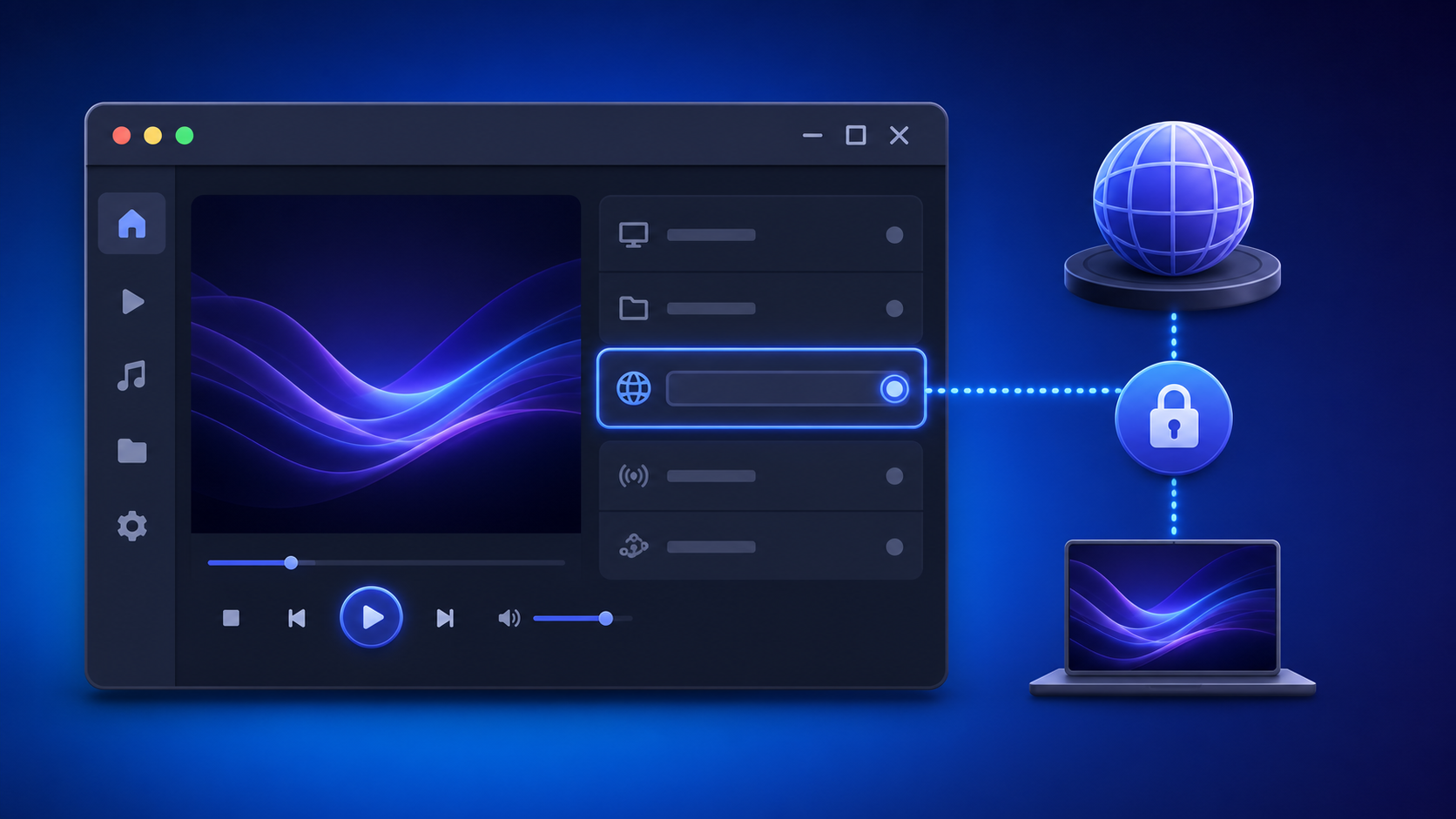
For the technical background, see VideoLAN’s VLC desktop media documentation. It explains both file playback and network-stream playback.
How to open a downloaded M3U playlist in VLC
Some providers deliver a playlist as a file rather than a URL. In that case, save the file in a location you can find later, then use Media > Open File in VLC. You can also drag a supported local file into the VLC window. VideoLAN documents both options for desktop playback.
Download the playlist only from the service or rights holder you use.
In VLC, select Media > Open File.
Choose the M3U or M3U8 file and select Open.
Open the playlist view to select an available item.
Do not edit an account-specific playlist unless your provider tells you to. A tiny change to a URL, token, or line break can prevent it from working.
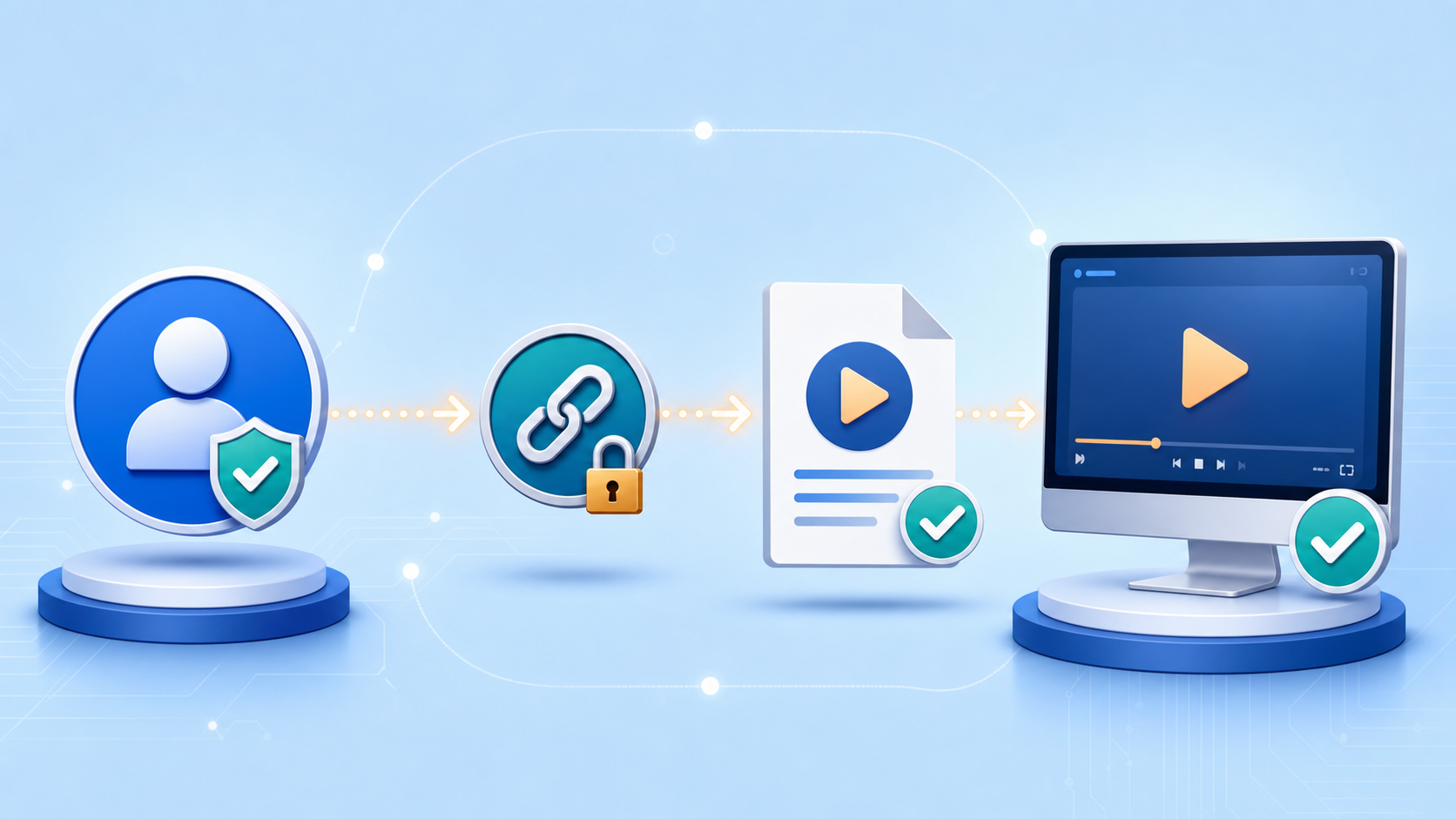
What VLC can and cannot do for IPTV
| VLC can help with | VLC does not provide |
|---|---|
| Opening a compatible network URL or local playlist file | Channels, licenses, or a subscription |
| Displaying a loaded playlist and playing supported streams | Account activation or password recovery |
| Basic local playback controls and audio/subtitle choices when supplied | A guarantee that every provider feature will work |
| A lightweight player for a Windows PC | Provider-specific EPG, catch-up, or multi-screen features in every case |
That distinction matters when comparing players. If your subscription uses a portal-style login, a proprietary electronic program guide, or multiple-connection management, the provider may recommend a different app. Start with its setup documentation instead of trying to convert credentials or force unsupported formats.
IPTV on Windows troubleshooting: common VLC problems
VLC does not open the stream
First, copy the URL again from the source that issued it and check for an expired trial, changed password, or account limit. Avoid “fixes” that ask you to substitute an unrelated playlist or bypass access controls. If the address is correct, ask the provider whether the service is active and compatible with VLC.
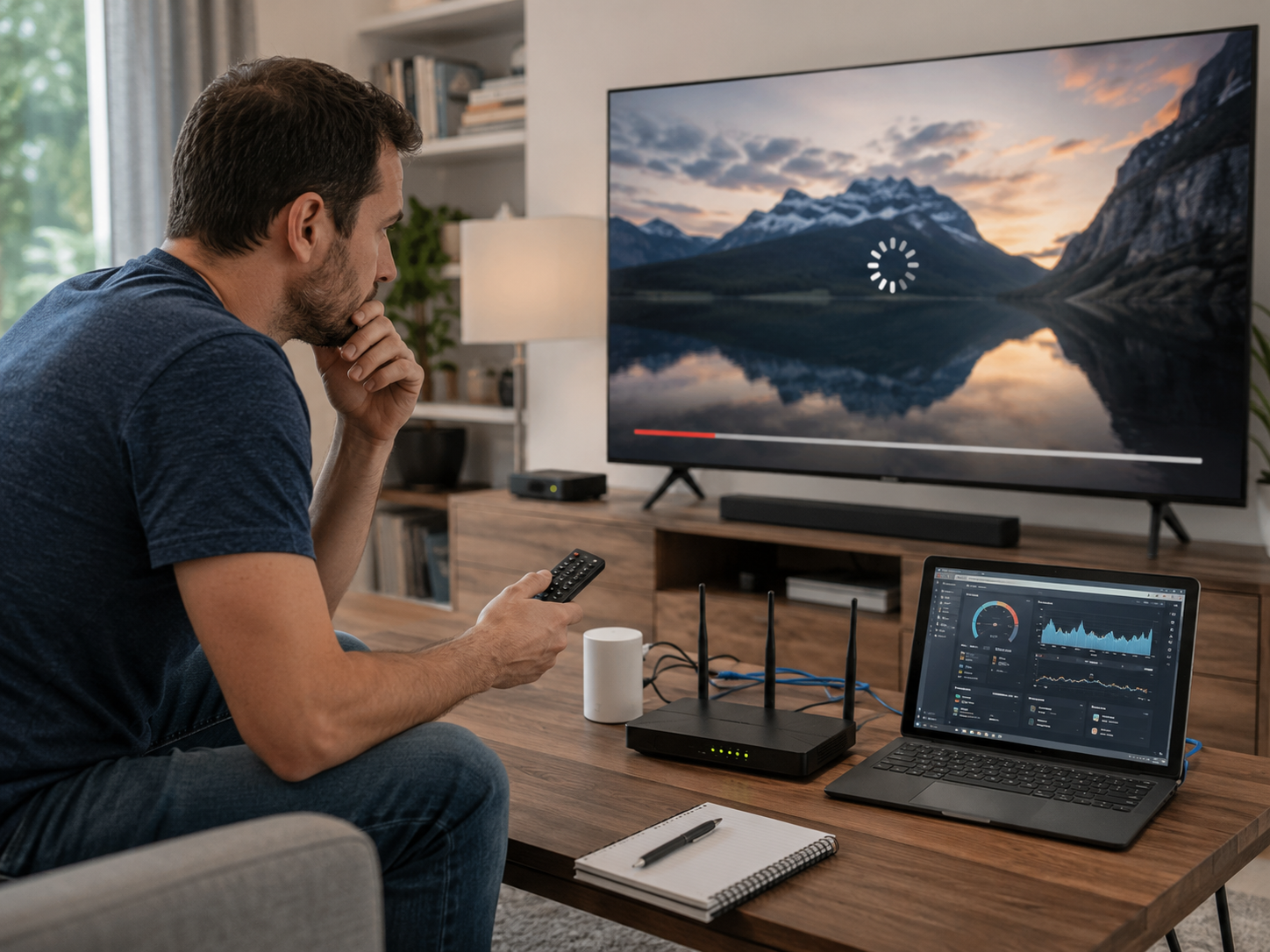
The stream buffers or quality drops
Pause bandwidth-heavy downloads, use Ethernet when practical, and restart the router and PC before changing advanced settings. Home-network congestion, Wi-Fi signal strength, the stream source, and the selected resolution can all affect playback. For a broader check of connection factors, review stariptv.shop’s internet-speed guide, but test your own network and provider terms rather than treating a published speed target as a guarantee.
The playlist opens but has no usable items
This can mean the playlist has not finished loading, the provider has changed its format, the account is inactive, or the entries require a player feature VLC does not support. Open the playlist panel, wait briefly, and contact the authorized provider with the exact error behavior—without sending credentials publicly.
Audio or subtitles are missing
Use VLC’s Audio and Subtitle menus to see whether alternate tracks were supplied. If no alternate track appears, it is usually a source limitation rather than a Windows setting.
Choosing a service before you load a playlist
A low price or a very large channel count should not be the only decision factor. Before purchasing any IPTV subscription, ask what content rights apply to your location, what player formats are supported, how many simultaneous streams are included, how support is reached, and what the refund terms actually say. Keep copies of the plan description and policy that applied when you ordered.
For stariptv.shop specifically, review the current plan information, FAQ, and refund policy before committing. Those pages may change, and they should be checked alongside your own assessment of rights, availability, and device compatibility.
A quick Windows VLC checklist
Install VLC from VideoLAN’s official site.
Use only a playlist or stream you have permission to access.
Use Media > Open Network Stream for a provider-issued URL.
Use Media > Open File for a local M3U/M3U8 file.
Open the playlist panel to choose available items.
Check connection, account status, and compatibility before changing player settings.
Keep subscription URLs and credentials private.
FAQ: IPTV on Windows with VLC
Can VLC play IPTV on a Windows PC?
VLC can play compatible network streams and local playlist files on Windows. It is a player, not an IPTV provider, so you need an authorized playlist, stream, or service account separately.
How do I open an M3U URL in VLC?
In VLC, choose Media, then Open Network Stream. Paste the authorized URL exactly as provided and select Play. Open View > Playlist once the list has loaded.
Can I use a downloaded playlist file instead of a URL?
Yes. Select Media > Open File in VLC and choose the downloaded M3U or M3U8 file. Download files only from a source you are authorized to use.
Does VLC include TV channels?
No. VLC is a media player. It does not include channels, licenses, or subscription access by itself.
Why is IPTV buffering in VLC on Windows?
Check Wi-Fi or Ethernet stability, other household bandwidth use, the selected resolution, and whether the provider reports a service issue. Restarting the router and PC is a sensible first check.
Is IPTV on Windows legal in the United States?
The player alone does not determine legality. Use streams and services you are authorized to access, and consider content rights, your location, and the provider’s terms. This article is general information, not legal advice.
Why does my playlist open but show no channels?
The account may be inactive, the URL may have changed, the playlist may still be loading, or the provider may require a different player. Confirm status and compatibility with the authorized provider.
Can I share my IPTV playlist URL?
Do not share account-specific playlist links. They can contain credentials or access tokens, and sharing may violate a provider’s terms or expose your account.
What should I check before subscribing to an IPTV service?
Review content authorization for your location, device and player compatibility, simultaneous-stream limits, support channels, cancellation and refund terms, and the exact plan details shown at checkout.
Do I need a VPN to watch IPTV with VLC?
Use a network service only in ways permitted by applicable law and the provider’s terms. A VPN is not a substitute for authorization and should not be used to bypass content restrictions.