Setting up IPTV on Android TV is usually straightforward once you separate two things: the player app on your TV and the authorized service details you receive from your provider. This guide walks U.S. viewers through a Play Store–first setup, basic troubleshooting, and the checks worth making before you sign in.
Before you install IPTV on Android TV
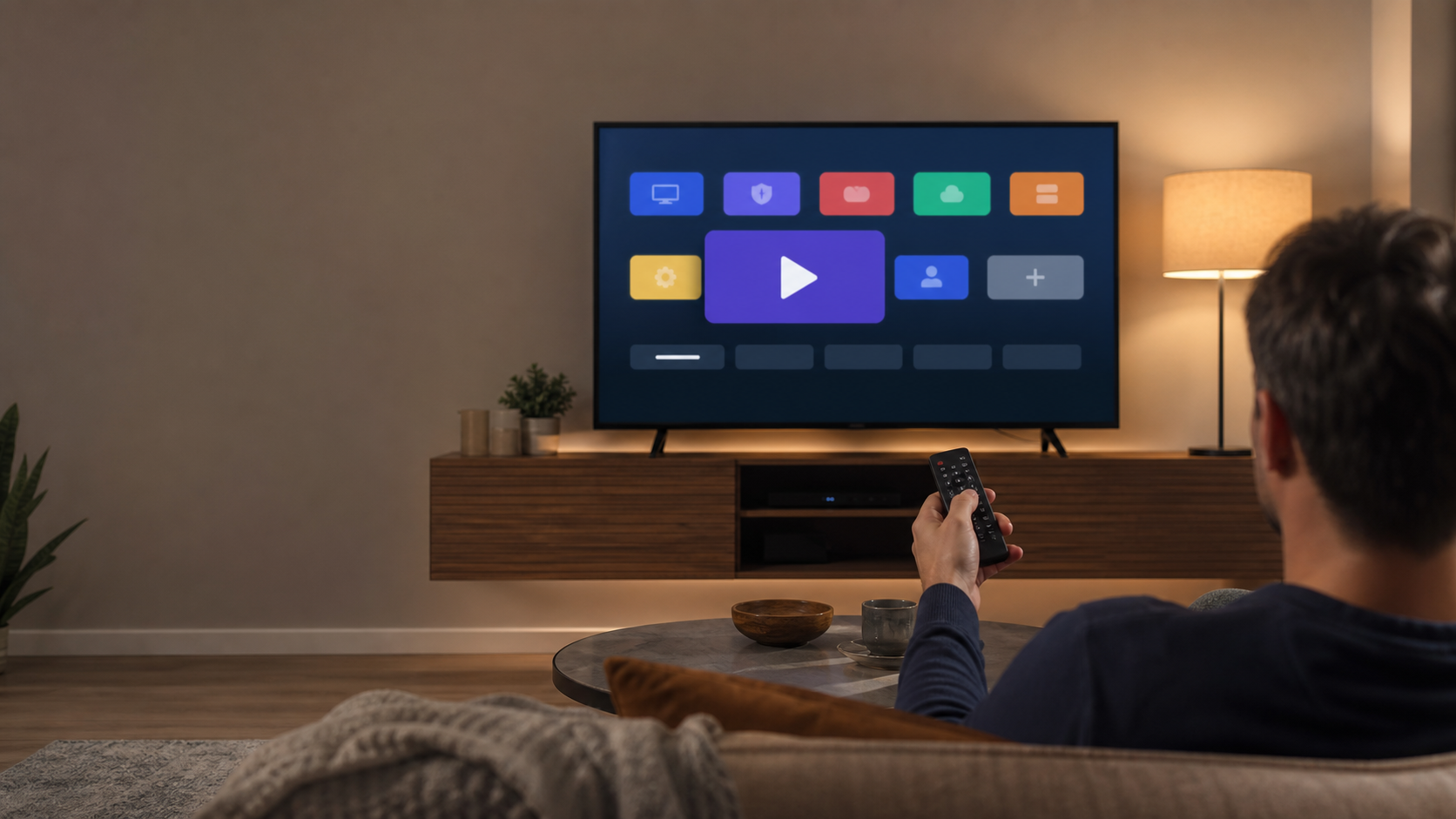
Android TV and Google TV devices can install compatible apps through Google Play. Google’s current guidance is to open Play Store from the TV’s Apps area, search or browse, select the app, and follow the on-screen installation prompts. See Google’s Android TV app-installation instructions.
An IPTV player is not a channel service. It is the app that organizes and plays media from a service or source you are entitled to use. A player does not include channels by itself. Before you begin, make sure you have an active, authorized account and its official setup details. Depending on the provider and player, this may be a portal address, a playlist URL, or a username and password.
What you need
An Android TV, Google TV, or Android TV box connected to the internet.
Access to the Google account used on that TV.
A player app that is available for your specific device in Google Play.
Authorized sign-in or playlist details supplied directly by your provider.
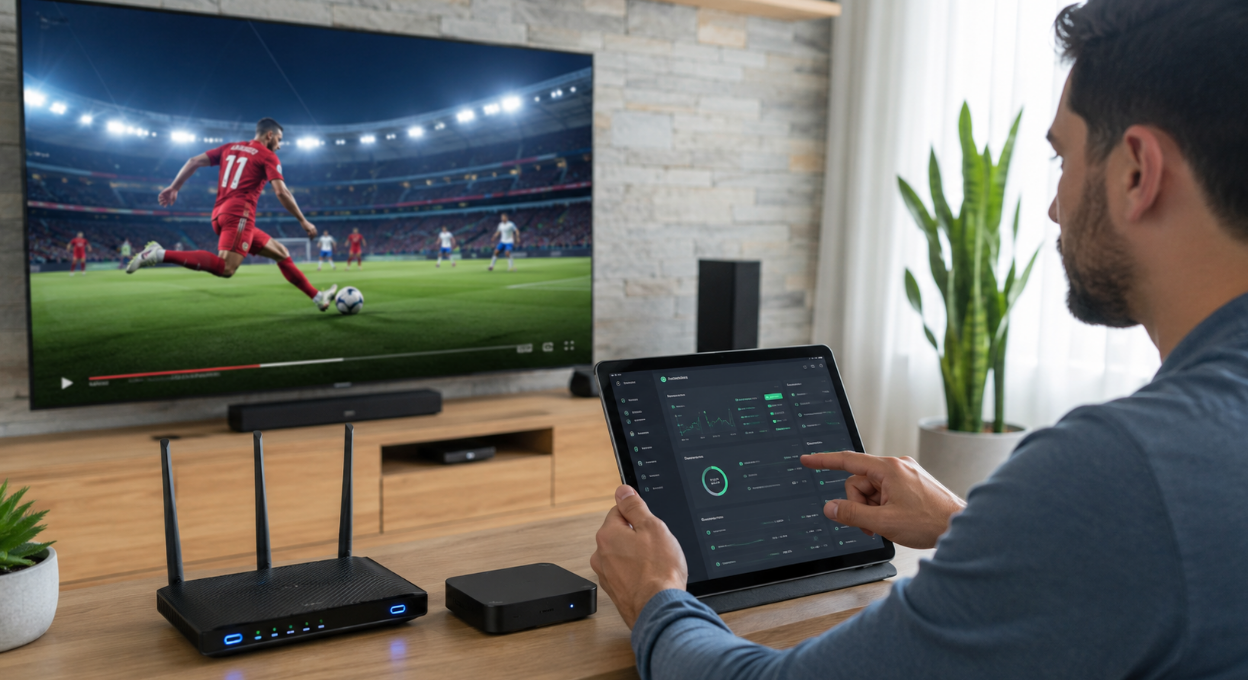
A stable home connection. If possible, keep the TV close to the router or use Ethernet for a more consistent connection.
App names, menus, and availability can differ across TV brands and Android TV versions. The safest default is the TV’s official app store. You can also use Google Play from a phone or computer to send a compatible app to another device registered to the same Google account; Google explains that device selection is shown during installation. Read Google Play’s device-installation help.
How to install IPTV on Android TV: 7 steps
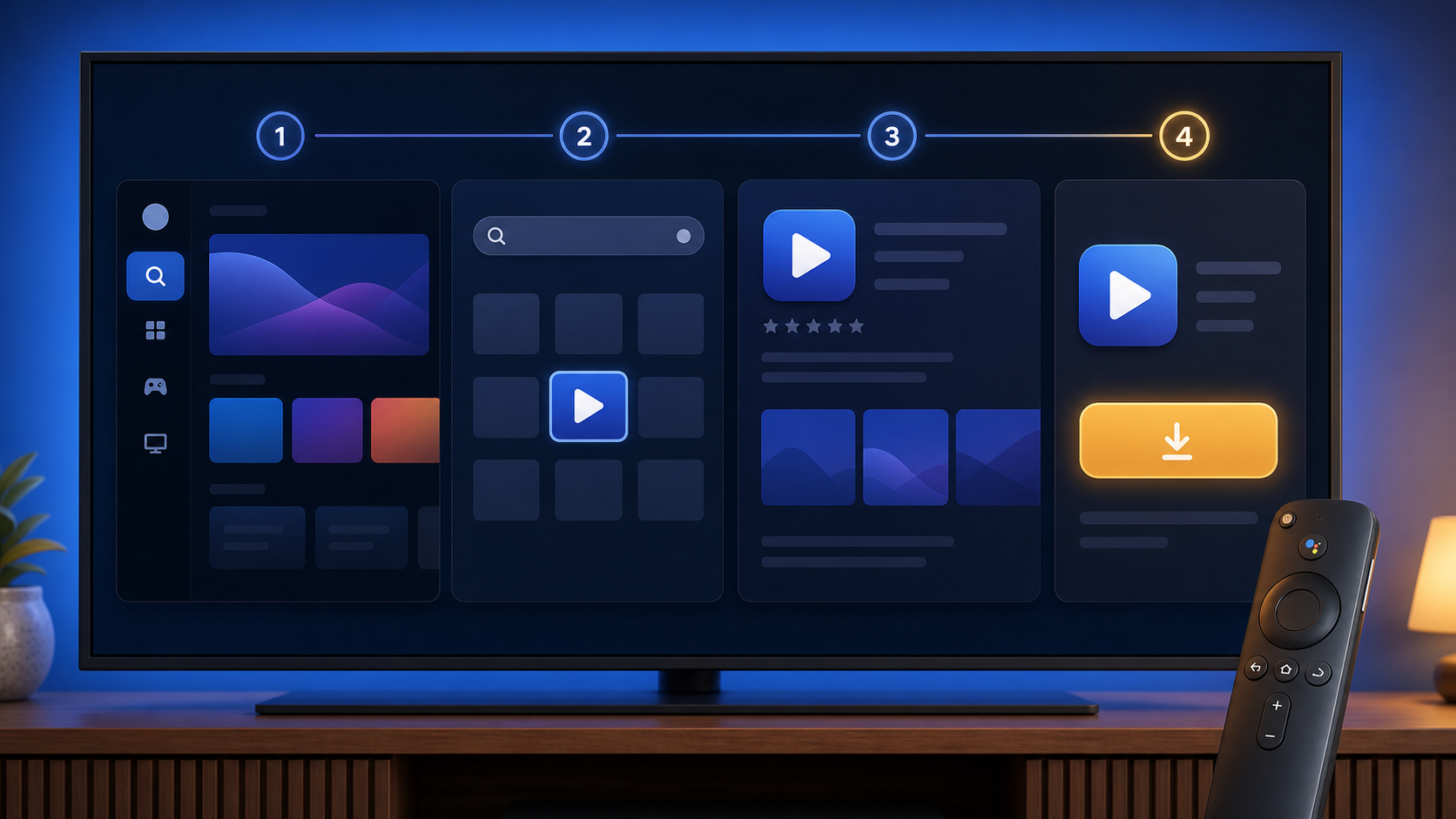
Update the TV if an update is available. A current system version can reduce compatibility surprises. Then restart the TV if it has been running for a long time.
Open Google Play Store. From the Android TV home screen, go to Apps, open Play Store, and use Search.
Choose a compatible IPTV player. Review the app listing, supported devices, permissions, and developer information. Install only apps offered through the official store or another official source confirmed by the app developer.
Open the player. You may be asked to allow ordinary app permissions or agree to the player’s terms. Read them before continuing.
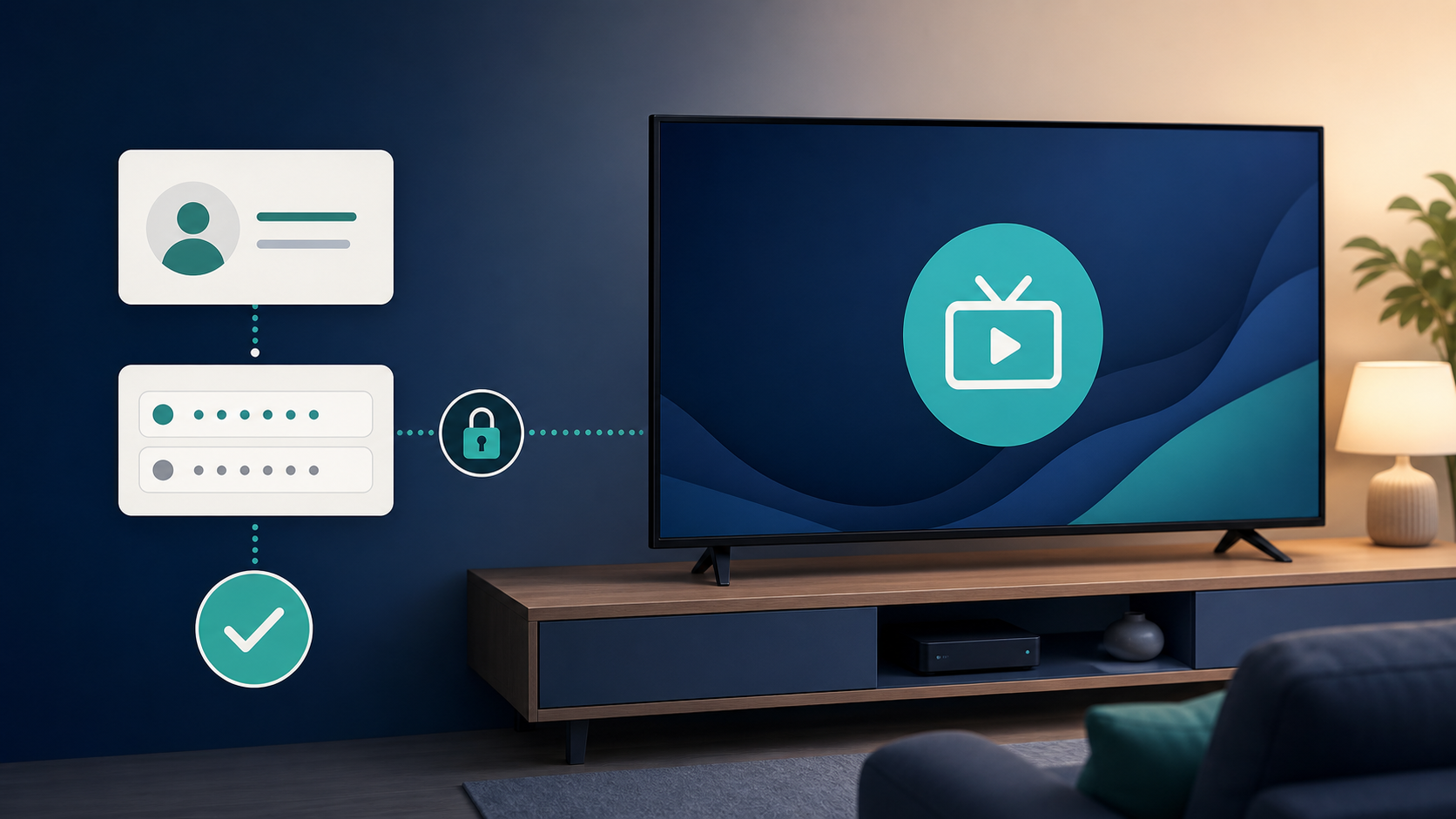
Select the supported sign-in method. The player might offer a provider login, portal-based setup, or playlist import. Choose only the method your authorized provider documents.
Enter the details exactly as supplied. Type the server address, username, password, or playlist address carefully. Treat these like account credentials: do not post them in screenshots or share them outside your household unless your subscription explicitly permits it.
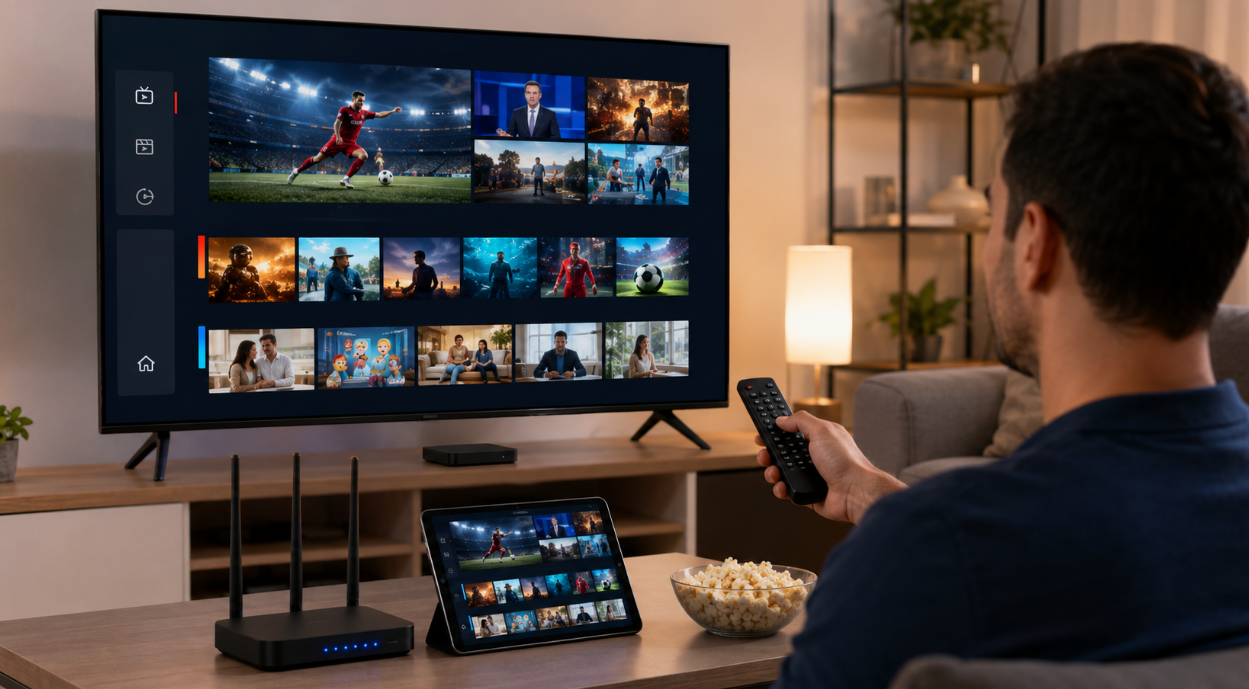
Let the library load, then test one authorized stream. If the player offers guide or profile settings, adjust them after confirming that basic playback works.
Choose the right player before adding your account
There is no single best player for every Android TV. Start with compatibility and transparency, not a long feature list. A sensible shortlist includes players that are available in Google Play for your device, explain their privacy practices, support the sign-in format your provider uses, and are comfortable to navigate with a remote.
| Check | Why it matters |
|---|---|
| Android TV compatibility | A phone-only app can be awkward or unsupported on a TV interface. |
| Official source | Store listings and official developer pages reduce the risk of altered or impersonated downloads. |
| Supported login format | Your player must match the authorized setup method your provider supplies. |
| Remote-friendly design | Search, guide navigation, captions, and account controls should work with the TV remote. |
| Privacy and account controls | Review permissions and look for a clear way to remove an account or playlist later. |
A player can be legitimate software while the source added to it is unauthorized. Evaluate those separately.
If IPTV on Android TV will not load or keeps buffering
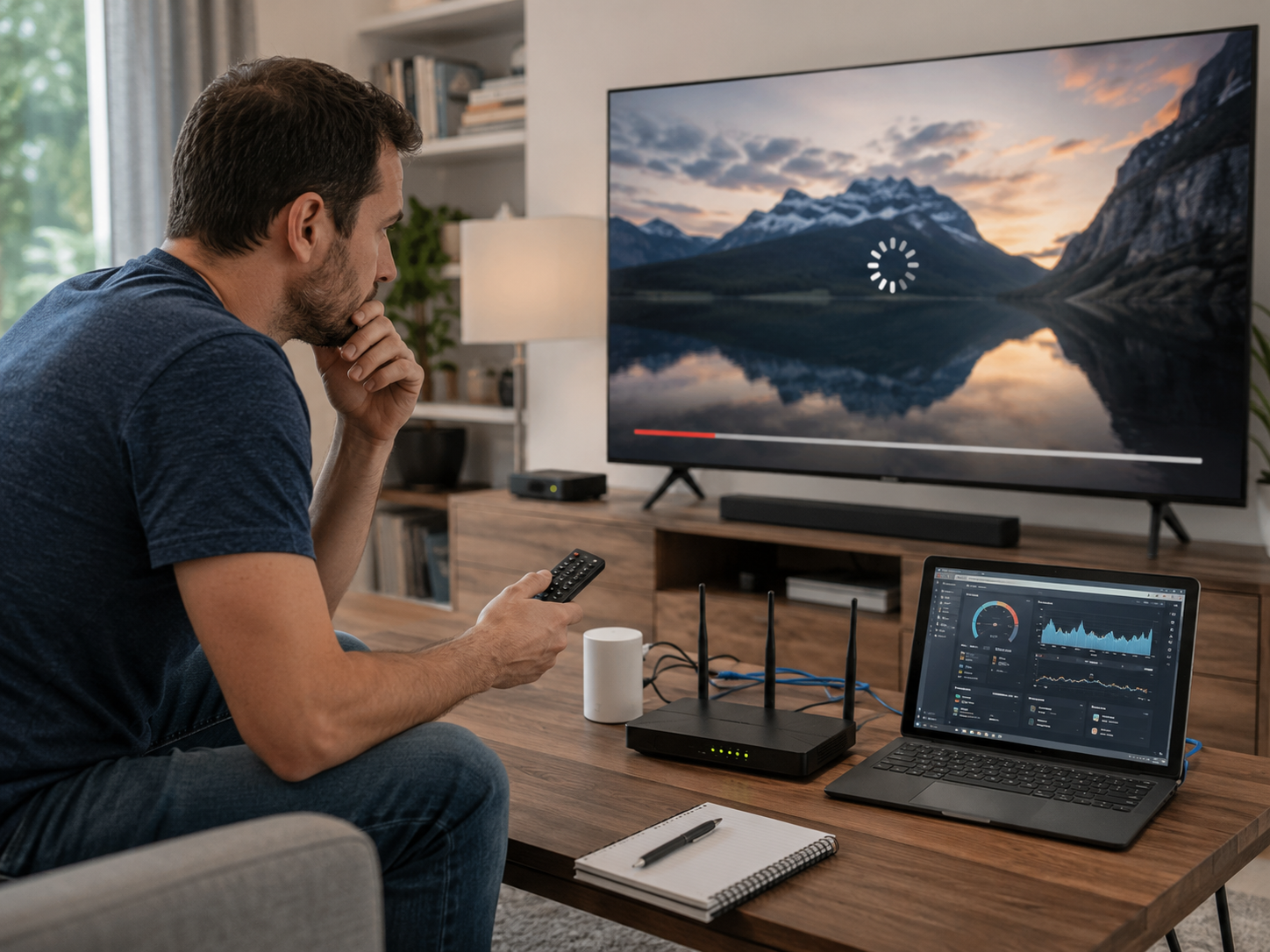
Start with the simple checks: confirm the TV is online, restart the player, and make sure its account details have not changed. If the same issue appears on every authorized stream, restart the router and TV. If it affects only one stream or only certain times of day, note that pattern before contacting the provider.
App will not install: Check available storage, the TV’s system version, and whether the app is offered for that device in Google Play.
Sign-in error: Re-enter the provider-issued details manually. Avoid copying an incomplete URL or an extra space.
Guide or library is blank: Confirm that the player supports the setup method you selected, then check the provider’s official instructions.
Picture pauses: Pause other large downloads, try a wired connection if practical, and test the TV near the router. Do not assume the player alone is the cause.
App crashes: Update the player from Play Store, force-close it, restart the TV, and remove/re-add the account only if you can securely access the original details again.
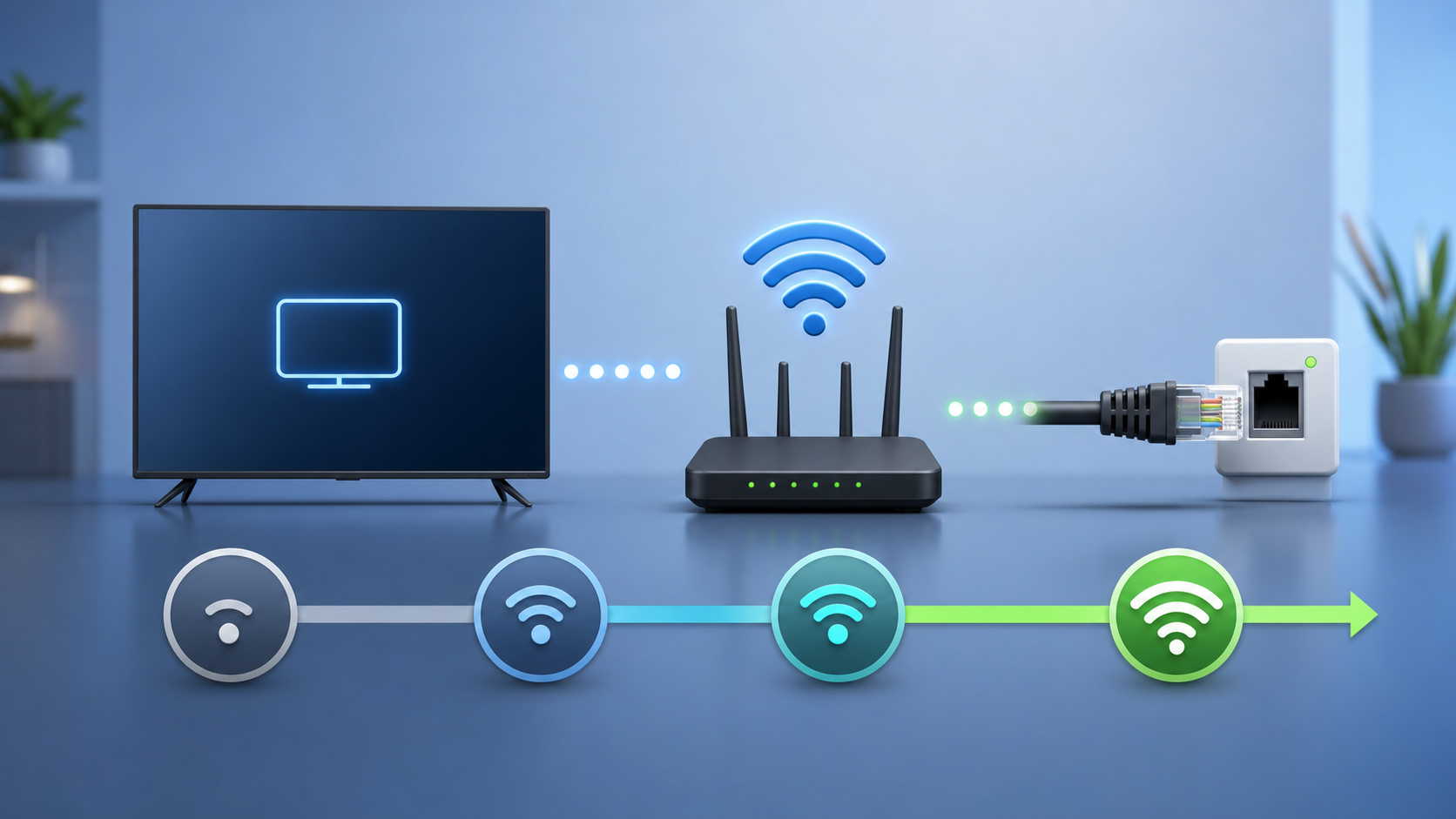
For a broader checklist of basic playback checks, see Star IPTV’s buffering troubleshooting article. Treat the provider’s current setup guide as the source of truth if its account method changes.
Using stariptv.shop with an Android TV player
If you are considering stariptv.shop, review the service information before you enter a payment or account detail. In particular, compare the current plans and device terms, read the setup guide, and check the FAQ, terms, privacy policy, and refund policy. Ask support to confirm Android TV compatibility, the approved player, the number of permitted concurrent streams, and the setup format for the exact plan you are considering.
Those checks are especially useful for U.S. viewers because available apps, supported content, and subscription terms can change. This guide does not verify a provider’s content rights or make a legal conclusion about any particular service; use only services and media you are authorized to access.
Quick setup checklist
Use Google Play or the player developer’s official installation source.
Confirm that the player supports your Android TV device and remote.
Use only credentials and sources you are authorized to access.
Keep credentials private and do not enable access outside your subscription terms.
Test one stream, the guide, audio, and subtitles before making further changes.
Keep the Android TV system and player current.
FAQ: IPTV on Android TV
Can I install IPTV on Android TV?
Yes, you can install a compatible IPTV player on Android TV through Google Play when it is available for your device. The player itself does not provide channels; use it only with services or media you are authorized to access.
Do I need a special Android TV box?
No. A TV or streaming device that runs Android TV or Google TV and supports the player you choose may be enough. Check the player listing and your provider’s current compatibility notes before subscribing.
What is the safest way to install an IPTV player?
Start with Google Play on the TV or the player developer’s official source. Avoid unverified APK sites, altered downloads, and instructions that ask you to weaken device security.
Why does the player ask for a playlist URL or provider login?
Players use the authorized account information supplied by a service to locate the media you are entitled to access. Enter it only in the approved app and do not share it publicly.
Is an IPTV player legal?
A player is software. Whether a particular use is permitted depends on the source, content rights, your region, and the subscription terms. Use authorized services, personal media, or streams you have permission to view.
Why is IPTV on Android TV buffering?
Buffering can come from Wi-Fi interference, network congestion, a busy household connection, device resources, or the source itself. Restart the TV and router, reduce competing downloads, and try Ethernet if it is practical.
Can I use the same IPTV account on more than one device?
That depends on the service’s terms and the plan you purchased. Some plans limit simultaneous streams even when an account can be signed in on several devices. Check the provider’s current policy before sharing access.
What should I do if the app is not available in Play Store?
Availability can depend on the device and region. Confirm the app’s official compatibility information, ask the provider which player it officially supports, or choose a different Play Store app that supports your authorized setup method. Do not rely on unverified download mirrors.
Do I need to pay separately for the IPTV player?
Some players are free and others offer paid features or subscriptions. The player cost is separate from a media service subscription. Review the app’s Play Store listing and your provider’s plan terms before paying.
Where can I find Star IPTV setup information?
Review the current Star IPTV setup guide and FAQ, then contact its support channel to confirm the player, device compatibility, and authorized sign-in method for your plan. Recheck terms and policies before ordering because details may change.