In the wild west of streaming, iptv testing is your lie detector. On paper, every provider swears their channels run smooth as butter—but when buffering hits during prime time, that promise melts fast. If you’re signing bulk contracts or outfitting hotels, you can’t afford crossed fingers and hopeful clicks. You need proof, not pretty sales decks.
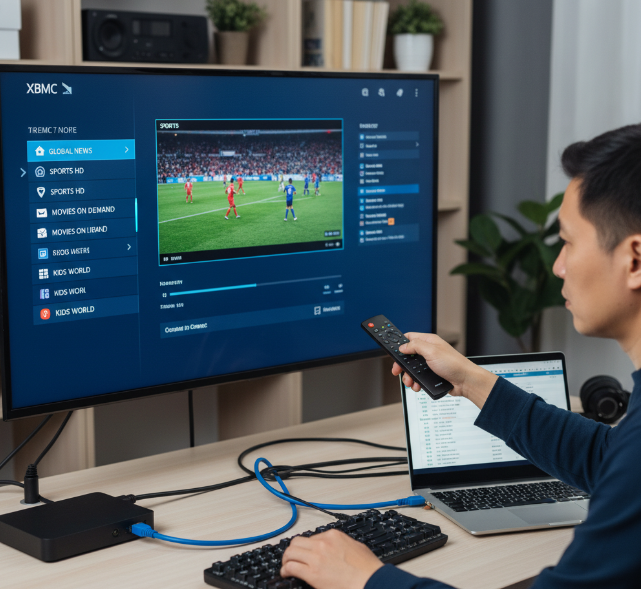
Think of XBMC like a test kitchen. Before you serve a five-star dinner to hundreds of guests, you taste everything. Same deal here—load the playlist, stress the streams, watch how they behave when the heat’s on. That’s how smart buyers sleep at night.
Key Points for Seamless IPTV Testing
Environment
Ensure your environment is primed: stable broadband, updated XBMC/Kodi, wired Ethernet, and hardware decoding.
Setup
Load and configure M3U playlists and EPG URLs via PVR IPTV Simple Client, verifying authentication and channel mapping.
Validation
Conduct real-time quality checks, measure buffering and latency, and simulate peak-load stress tests to validate provider performance.
Troubleshooting
Troubleshoot with XBMC stream stats, debug logs, and network optimizations—prioritize QoS, DNS settings, and MTU adjustments.
Preparing Your Environment
Getting ready for iptv testing isn’t just plug-and-play. A few smart setup moves can save hours of buffering drama. Let’s line up your gear, provider, and playlist so IPTV test sessions run clean and smooth.
System requirements for smooth IPTV testing on XBMC
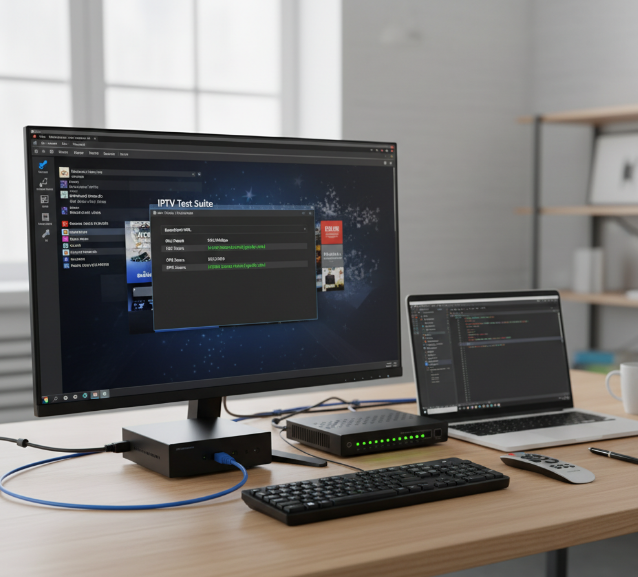
For stable iptv testing on XBMC, your setup needs to check several boxes:
Core Software Layer
Windows, Linux, Android, or macOS fully updated.
Latest security patches reduce stream interruptions.
Keep the latest stable build installed.
Confirm PVR IPTV Simple Client compatibility.
XBMC version
Operating system
Network Foundation
Wired Ethernet beats Wi-Fi.
Low jitter and packet loss matter more than raw speed.
Minimum 25 Mbps for bulk IPTV test streams.
Higher bandwidth if running parallel IPTV tests.
Internet speed
Network stability
Hardware Capacity
4GB RAM minimum; 8GB recommended for heavy IPTV testing.
SSD storage improves caching response.
Ensure GPU supports hardware decoding (H.264/H.265).
Device compatibility
Hardware resources
If you’re scaling serious iptv test sessions, solutions like Stariptv are often optimized for smoother playback during stress testing.
Choosing a reliable IPTV service provider for bulk streams
When running large-scale iptv testing, your Service provider reputation matters a lot. A flashy channel list means nothing if streams drop every hour.
Look at:
Server uptime history (99.9% or higher is ideal)
Consistent Stream quality across HD and 4K
Wide Channel selection without geo-block surprises
Clear Subscription plans with multi-connection options
Responsive Customer support that actually replies
For IPTV test environments, try short billing cycles before committing. Test peak hours. Run simultaneous streams. Track buffering logs.
Brands like Stariptv are often chosen for bulk IPTV testing because of stable nodes and scalable access, which helps when pushing multiple streams at once.
Collecting M3U playlist and EPG URLs
Clean data equals clean iptv testing results. Here’s how to organize it right:
Playlist Access Layer
UTF-8 encoding preferred.
No broken channel tags.
Confirm active login credentials.
Check URL validity and expiration date.
Secure your M3U URL
Verify Playlist format
Guide Data Layer
Match channel IDs correctly.
Remove duplicates to avoid guide conflicts.
Ensure XMLTV standard support.
Sync time zone settings.
Add accurate EPG URL
Review Channel mapping
Documentation Check
Authentication method (MAC, username/password, token).
Refresh intervals for EPG updates.
Review Provider documentation
During iptv testing, always reload playlists after edits and monitor log files inside XBMC. Small details here can make or break your IPTV testing workflow.
Installing PVR IPTV Simple Client on XBMC
Getting your setup right makes iptv testing way easier later. When XBMC runs smoothly with the right add-on, your iptv test results actually mean something. Below is how to enable the client and connect your playlist without the usual guesswork.
Enabling the PVR IPTV Simple Client add-on
To prepare for proper iptv testing, the PVR IPTV Simple Client must be correctly activated inside XBMC. A clean enable process keeps your iptv streaming test from failing due to basic setup mistakes.
Accessing the official repository
Add-ons
My Add-ons
PVR Clients
Select PVR IPTV Simple Client
Open XBMC
Navigate to:
Confirm it is installed from the official repository
Enabling the add-on
Verify default configuration
Avoid random changes during initial IPTV service testing
Click Enable
Open settings before exiting
Restarting the application
PVR manager starts automatically
TV option appears in the main menu
Close XBMC
Relaunch the system
Confirm:
If you plan to use Stariptv for iptv testing, enabling the client correctly ensures your iptv test reflects real network performance, not setup errors. Many users skip the restart and end up blaming the stream—don’t be that person.
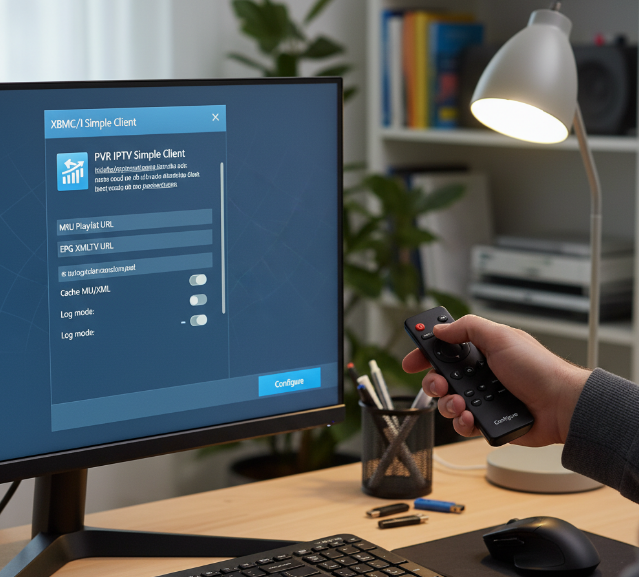
Linking your M3U playlist to the client
Connecting your M3U playlist properly is critical for stable iptv testing. A broken URL or wrong network location will ruin any attempt to test IPTV performance.
Opening client configuration
Add-ons
My Add-ons
Click Configure
PVR Clients
PVR IPTV Simple Client
Go to:
Selecting playlist source
Enter valid URL
Double-check spelling
Choose:
Remote Path (Internet address)
Local Path (stored file)
Under General:
If using remote:
Advanced configuration
Enter XMLTV link
Match it with your channels
Enable caching if your internet fluctuates
Configure EPG source:
Finalizing setup
Click OK
Restart XBMC
Wait for channel loading notification
For smoother iptv streaming test sessions, many users pair this setup with Stariptv because it keeps playlists stable during repeated iptv testing cycles. When your M3U loads correctly and channels sync with EPG, your IPTV service testing becomes real-world accurate instead of just trial and error.
Run iptv testing at different times of day, compare load speeds, and monitor buffering. That’s how you test IPTV performance like a pro without overcomplicating it.
Adding and Configuring M3U Playlists
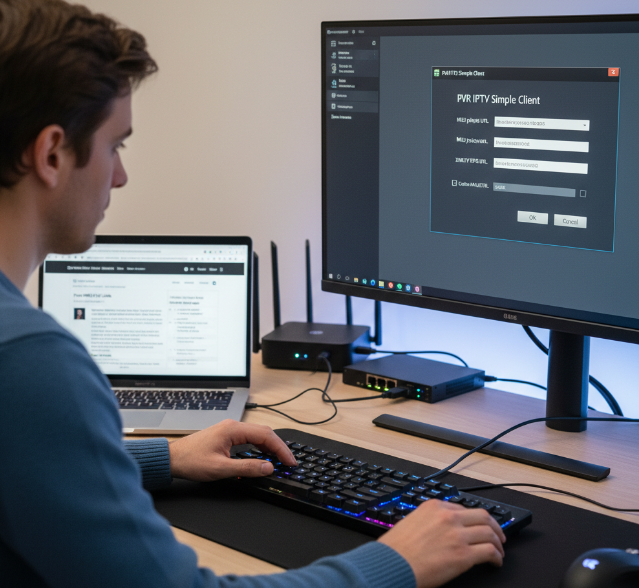
Getting your playlist right is where smart iptv testing really begins. When your setup is clean, channel loading feels instant and guide data lines up perfectly. This is where testing IPTV streams, IPTV test checks, and steady iptv testing habits pay off big time.
Loading your M3U file into XBMC’s PVR client
To properly load your M3U file into the XBMC PVR client, keep the flow organized:
Access Settings
Enable Live TV
Select your PVR add-on
Choose configure client
Open TV
Inside client configuration
Local file
Remote URL
Confirm select source
Add playlist path
Finalize
Enable channel logos
Save
Restart to load channels
For reliable iptv testing, check three things right after import:
Channels populate without delay
No duplicate entries appear
Streams start within a few seconds
If you're using Stariptv as your provider, playlist syncing tends to feel smooth, which makes IPTV test sessions quicker and less frustrating.
Setting up EPG data for accurate channel guides
Strong EPG data setup keeps your channel guide useful instead of messy.
Open PVR settings
Add XMLTV file URL
Enable auto-update
Then fine-tune:
Adjust time zone
Refresh guide
Confirm program information appears
Scan schedule data alignment
For proper iptv testing, compare guide time with actual broadcast start. Even a 1-hour offset means your IPTV testing process needs correction.
When testing IPTV streams from Stariptv, guide mapping usually connects fast, reducing manual edits.
Verifying channel list population and order
Your channel list should reflect full playlist accuracy.
Check in this order:
TV menu
Open 5–10 random streams
Check streams stability
Confirm channels populate
Run verify channels review
If ordering feels chaotic:
Edit channel order
Rebuild favorites
Re-sync playlist
During iptv testing, small fixes here prevent long-term headaches. A clean, properly populated list makes every IPTV test feel effortless—and that’s exactly what you want from a provider like Stariptv.
Performing IPTV Channel Tests
Running smart iptv testing isn’t just clicking channels and hoping for the best. It’s about breaking down IPTV, testing streams in real time, and checking how every signal behaves under pressure. Good IPTV test habits keep surprises away and make streaming smooth.
Real-time stream quality assessment
When doing iptv testing, live playback tells the truth.
Core playback indicators
Check sync against lip movement
Listen for echo or compression noise
Confirm steady 25/30/60 fps output
Spot micro-stutter during sports
Track Mbps fluctuations every 30–60 seconds
Watch for sudden drops that hurt stream stability
Video bitrate
Frame rate
Audio quality
Visual integrity
Blocks during motion scenes
Often tied to weak signal strength
Pixelation spikes
Artifact bursts
For example, during a 10-minute IPTV test:
| Metric | Target Value | Observed |
|---|---|---|
| Bitrate | 8–12 Mbps | 10.4 Mbps |
| Frame Rate | 60 fps | 59.8 fps |
| Audio Delay | <100 ms | 85 ms |
With providers like Stariptv, stable video bitrate and clean audio quality usually mean fewer mid-match headaches.
Measuring buffering times and latency
Serious iptv testing checks delay, not just clarity.
Startup performance
Compare under 20 ms vs 80 ms
Measure time from click to playback
Initial buffering
Ping response
Ongoing stability
Even 1–2% can cause freeze
Count per hour
Re-buffering events
Packet loss
Network behavior
Network latency during peak hours
Average buffer duration after switching
Quick checklist during IPTV test runs:
Record startup in seconds.
Switch channels five times.
Log every pause longer than two seconds.
Low delay plus minimal packet loss equals happy viewers.
Sequential testing of multiple channels
Methodical IPTV testing means no random surfing.
Channel rotation plan
Validate channel availability
Monitor channel playback consistency
Check channel loading speed
News
Sports
Movies
Switching metrics
Aim for under 2 seconds
Channel switching time
Black screen duration
Authentication pop-ups
Verification
Cross-check channel list verification against provider catalog
Note regional bitrate changes
A clean IPTV test log should show smooth channel loading speed and near-zero failures. Stariptv often performs well here, especially during rapid switching.
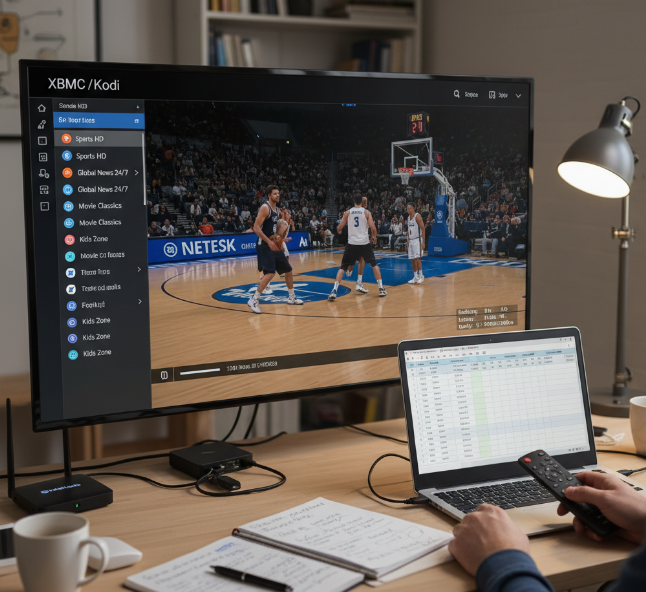
Simulating peak-load stress tests
Real pressure shows real quality in IPTV testing.
Concurrent access
Monitor bandwidth utilization per device
Compare server response time
Run 3–5 concurrent streams
Device stress
Track CPU and resource consumption
Note drops in system performance
Stability review
Evaluate long-session connection stability
Log disconnect frequency
During heavy traffic nights, strong providers keep bandwidth utilization balanced and maintain steady server response time. That’s where consistent IPTV testing separates average services from ones that actually hold up when everyone’s online at once.
Interpreting and Troubleshooting Test Results
Getting clear about results during iptv testing saves time and stress. When you break down IPTV, testing data, and live stream behavior, small clues explain big playback problems fast.

Reading and understanding XBMC stream statistics
During iptv testing, open the codec overlay and review key stream statistics:
Core playback data
Bitrate spikes often explain sudden drops in quality.
Frame rate mismatches can cause visible stutter.
Resolution shifts may signal adaptive streaming limits.
Stability indicators
Buffer status staying low? Expect buffering issues.
Rising packet loss usually links to network congestion.
For deeper IPTV test sessions:
Check decoding method (hardware vs software).
Watch CPU load during live IPTV testing.
Compare results across channels to confirm patterns.
Short story: smooth stats mean smooth viewing. Messy numbers mean it’s time to tune something.
Fixing common playback errors on IPTV channels
Common playback errors show up clearly in iptv testing logs:
Stuttering with steady bitrate → suspect network jitter.
Freezing plus low buffer → check DNS or source server.
Audio sync drift → codec mismatch.
Channel not loading → expired playlist or bad URL.
For IPTV testing troubleshooting:
Revalidate playlist links.
Restart the app cache.
Confirm codec support.
If buffering issues persist during IPTV test runs, switch servers. Many users using Stariptv notice stable playback because streams are optimized before release, cutting down repeat iptv testing headaches.
Network optimizations for improved performance
Smart iptv testing always includes network checks.
Hardware layer
Prefer wired connection over weak Wi-Fi signal.
Adjust router settings for QoS priority.
Configuration layer
Update DNS settings to reliable providers.
Review firewall configuration blocking stream ports.
Test actual network speed during peak hours.
A 2025 Ericsson Mobility Report noted:
“Video streaming continues to account for the majority of global mobile data traffic, with performance stability directly impacting user satisfaction.”
That’s why consistent IPTV testing under real traffic matters. Stariptv users often report fewer peak-hour drops after simple router tweaks.
Advanced debugging with XBMC logs and add-ons
When regular IPTV test checks fail, go deeper.
Enable debug mode.
Review XBMC logs for HTTP errors.
Scan error messages tied to time stamps.
Then organize findings:
Playback layer
Codec failures
Source timeout
System layer
CPU spikes in system information
Memory pressure
Add-on layer
Incorrect add-on settings
Version conflicts
Clean log analysis during iptv testing helps isolate issues instead of guessing. Stariptv support teams often request logs because structured IPTV testing results speed up fixes and reduce repeat problems.
Success Rules
Keep setups clean
Load the playlist, sync EPG properly, and confirm channel mapping before testing under load.
Test at different times
Peak-hour validation catches issues that smooth off-hour demos can easily hide.
Watch the metrics
Bitrate, buffering, latency, CPU load, and dropped frames tell you what the stream is really doing.
Use logs, not guesswork
Structured log analysis speeds up fixes and keeps troubleshooting grounded in evidence.
References
[Official Kodi Wiki – Add-on: PVR IPTV Simple Client - https://kodi.wiki/view/Add-on%3APVR_IPTV_Simple_Client]
[GitHub – kodi-pvr/pvr.iptvsimple - https://github.com/kodi-pvr/pvr.iptvsimple]
[Official Kodi Wiki – Log file - https://kodi.wiki/view/Log_file]
[Official Kodi Wiki – Settings/System/Logging - https://kodi.wiki/view/Settings/System/Logging]
[Ericsson – Mobile network traffic Q4 2025 - https://www.ericsson.com/en/reports-and-papers/mobility-report/dataforecasts/mobile-traffic-update]
FAQ
What hardware setup ensures smooth IPTV testing on XBMC/Kodi?
A stable setup saves hours of frustration. Focus on three core areas:
System readiness: Updated XBMC/Kodi version, current OS and graphics drivers, and hardware video decoding enabled.
Network stability: Wired Ethernet over Wi-Fi and consistent bandwidth during test windows.
Performance headroom: Adequate RAM for multi-stream playback and CPU usage below overload thresholds.
When stream stats show low dropped frames and steady bitrate, your hardware is holding the line.
Which metrics matter most during stress-based iptv testing?
Under pressure, numbers tell the truth.
Key indicators to track include bitrate fluctuation during peak hours, channel switching latency, buffering frequency and duration, dropped frames, and CPU spikes.
If multiple metrics spike together, the issue usually sits at server or bandwidth level.
| Metric | Warning Sign | What It Signals |
|---|---|---|
| Bitrate | Sudden drops | Server strain or throttling |
| Latency | Slow channel load | Network congestion |
| Buffering time | Repeated pauses | Bandwidth instability |
| CPU usage | Sustained high percentage | Device performance limits |
Why are M3U playlist and EPG URLs critical before testing?
Without clean sources, results lose credibility.
Valid M3U links prevent token expiration errors.
Updated XMLTV EPG ensures accurate program timing.
Consistent playlists allow repeatable comparisons.
Expired tokens, mismatched guides, or broken DNS paths can distort findings. Solid input data leads to trustworthy output metrics.
How can peak-load conditions be simulated during iptv testing?
Real stress reveals real weaknesses.
A practical approach includes running simultaneous streams on separate devices, testing during high-traffic evening hours, monitoring router bandwidth allocation, and adjusting QoS to observe throttling impact.
When streams compete for bandwidth, small flaws become visible. Stable playback under load signals a provider capable of handling real-world demand.