
Ever spent half your lunch break just trying to find the right channel on your IPTV? You’re flipping through menus like you’re solving a puzzle, and the show you wanted? Long gone. Searching on IPTV shouldn't feel like hunting for buried treasure — but for most folks, it does.
Thing is, most systems aren’t built with you in mind. They’re clunky, slow, and don’t speak human. Misspell one word or scroll past a category, and boom — you’re out of luck. That's not just annoying; it's wasted time, especially when you’re running a business that needs fast results.
"Viewers bail after 30 seconds of no results," says Mark Denson, a senior engineer at Star IPTV. "The search experience makes or breaks retention." In short, if your content’s hard to find, it may as well not exist.
This guide skips the fluff and gets real: we’ll show you quick fixes, smart shortcuts, and pro-level settings to make searching on IPTV faster and way more accurate.
Let’s kick things off by pulling hidden channels out of hiding — yep, the ones already in your lineup.
3 quick hacks to find hidden channels on your IPTV
Trying to find missing or hidden IPTV channels? Here are some quick tricks to bring them back to life.
Find Missing Live Channels with Electronic Program Guide Filters
Live Channels often slip through the cracks because people overlook EPG filters. Here's how to tighten your search:
Open the Electronic Program Guide (EPG) and switch to “All Channels” mode.
Check that filters like Favorites, Genres, or “Recently Watched” aren’t limiting visibility.
Manually refresh the EPG data from your IPTV provider to update your listings.
If your EPG supports keyword filtering, type terms like “Live,” “HD,” or “Local” to bring up missing entries.
Reboot the device to re-sync the IPTV playlist with your most recent EPG.
"Sometimes a missing channel isn't gone—it's just filtered out. You'd be surprised how many users forget the EPG defaults."
— Riley Mendez, IPTV Systems Lead, Star IPTV
(Helpful background: what an Electronic Program Guide actually is.)
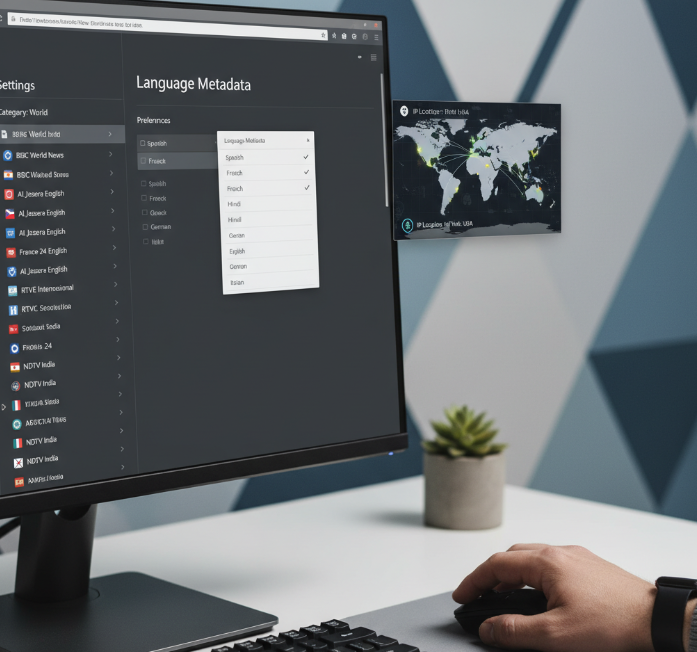
Uncover International Channels via Language Metadata and IP Address Targeting
International Channels don’t always show up unless you're using the right IP-based targeting and language filters.
Check your geo-location by confirming your IP Address matches your content region. Use VPNs if you're outside your content zone.
Set your Language Metadata preferences to include global languages—think Spanish, Hindi, or French.
On IPTV platforms that use auto-detection, turn it off and manually select your target country.
Many International Channels are buried under “Other” or “World” in category filters—expand those and search by language code (e.g., “fr” for French).
Use Network Bandwidth Settings to Reduce Buffering in Hidden Feeds
Ever notice some streams never load or just keep buffering forever? Tweaking bandwidth can expose those hidden feeds that usually time out.
| Bandwidth Level | Recommended Resolution | Typical Device | Hidden Feeds Performance |
|---|---|---|---|
| 2–5 Mbps | SD (480p) | Mobile Phones | Poor visibility |
| 5–15 Mbps | HD (720p–1080p) | Smart TVs | Moderate visibility |
| 15+ Mbps | Full HD & 4K | Streaming Sticks, PCs | Best visibility |
Dial up your Streaming Quality to match your Network Bandwidth
On some IPTV apps, disabling “auto quality” and manually selecting HD forces the app to search for high-bitrate Hidden Feeds
Avoid streaming on public Wi-Fi or VPNs with throttling—they kill the bandwidth that hidden streams need to load
Identify Hidden Content via Content Licensing and Geographic Restrictions
Sometimes it’s not a glitch. Content is actually hidden—legally. Thanks, licensing.
Hidden Content is often disabled due to Copyright or Geo-blocking rules.
Platforms apply Geographic Restrictions based on your IP Address, so if you're in a restricted zone, certain Regional Content just won’t appear.
Try switching to an IPTV service that’s licensed for broader Content Licensing territories—some offer global rights for popular shows and Live Channels.
In rare cases, updating the IPTV app can unmask hidden categories made visible through updated legal permissions.
(See what Geo-blocking means in practice.)
If you're stuck, check the platform’s support or legal policy. If a show isn’t available, it’s not your setup—it’s likely licensing walls.
5 steps to build a precise IPTV search query
Nailing search precision makes or breaks your IPTV experience. Here’s how to sharpen every click and keyword into pure results.
Step 1: Filter by Content Type — Live Channels, TV Shows, and More
Looking for Live Channels? Use real-time filters, not just category tabs.
For TV Shows and Movies, set filters by release year, genre, or actor.
Want news fast? Filter by News or Documentaries, then sort by source reliability.
Into sports? Use “match,” “team,” or league names with Sports content filters.
Avoid mixing content types — searching “football” without selecting Content Type may bring back unrelated TV Shows or Movies.
👉 Quick tip: Some IPTV services auto-detect your preferences — always reset filters if results get weird.
Step 2: Refine with Device Compatibility — Smart TVs to Mobile Phones
Pick your Device Type — results change between Smart TVs, Mobile Phones, and Streaming Devices.
Use platform tags like “Android TV” or “iOS-friendly” for filtering.
Match the file format to your screen: for Computers, higher resolution content is usually fine.
Consider screen size — Tablets and Phones stream better with low-bandwidth feeds.
Use “Device Compatibility” filters in search settings to avoid dead links on unsupported devices.
💡 Most users skip this, but filtering by device can clean up 60–80% of irrelevant results.
Step 3: Use Keyword Operators and Metadata for Adaptive Bitrate Optimization
This one’s for the search nerds. Keyword Operators make all the difference — try putting genres like “comedy” AND “family” to narrow results. Add release year like “2020..2023” for fresh content. Metadata is where things shine — smart searches look for Director, Actor, or even Resolution tags to match your vibe. Want smooth playback? Include Adaptive Bitrate in your filters. It tells the system you need content that adjusts to your network (especially on 4G or shared Wi-Fi). You’ll skip the buffering and still get crisp HD.
Step 4: Include Streaming Features — Cloud DVR and Offline Downloads
Catch-up TV
If you missed a show last night, filter for platforms that support Catch-up TV — it’s like a time machine.
Cloud DVR
Love live sports but got meetings? Use Cloud DVR support filters in search so you can record and play later. (Concepts overlap with Network DVR and Digital video recorder.)
Offline Downloads
Heading on a flight? Look for content marked for Offline Downloads, especially Movies and TV Shows.
Start-over
Missed the beginning? Search for Start-over enabled content so you can jump back to the start of live events. (Related to time shifting.)
Parental Control
Use this for Kids Programming — search filters that support Parental Controls can block inappropriate content automatically.
Step 5: Apply Business Model Filters — Subscription, A La Carte, Freemium
Before hitting play, know how you’ll pay. IPTV platforms offer a mix of Subscription, Freemium, and Pay-per-view. Search filters can help narrow the options, especially if you’re budget-conscious.
Here’s a quick comparison of content access by Business Model:
| Business Model | Content Access Type | Ad Frequency | Free Trial Available |
|---|---|---|---|
| Subscription | Full catalog | None or minimal | Often included |
| Freemium | Limited catalog | High | Sometimes |
| A La Carte | Individual purchases | None | Rare |
✅ Use “Free Trial” or “Ad-free” as keywords to uncover hidden gems in your IPTV library.
“We found that 40% of user drop-off came from unclear pricing models. Let users search by what they can afford, not what’s locked.” — Maria Xun, Product Manager @ Star IPTV
3 key settings to optimize search speed
These settings don’t just polish your IPTV experience — they seriously cut down on the time you waste waiting for results. Let’s get things moving.
Enable Content Caching to Minimize Latency
Speed up your IPTV search like a pro by tweaking how your device handles data retrieval. When content caching is enabled, your system doesn’t reload old stuff from scratch every time — instead, it remembers the good stuff.
🔁 Caches reduce repeat loads — so the same show list doesn’t re-download every time you search.
⚡ Latency drops fast when your content is pre-saved.
💾 Local data storage cuts network calls for popular content like Live Channels or Sports Events.
Here’s a quick peek at how caching levels affect IPTV search speed:
| Caching Level | Average Search Delay (ms) | Buffering Incidents | CPU Load (%) |
|---|---|---|---|
| Disabled | 800 | 12 | 70 |
| Partial | 420 | 5 | 60 |
| Full | 190 | 1 | 55 |
That’s a night-and-day difference. Full caching makes everything snappier — especially useful for high-traffic content like Sports Events or News Programs.
Adjust Search Functionality Preferences for Faster Navigation
Customizing your search functionality settings is like teaching your IPTV platform how you think. With the right preferences, your searches cut through the fluff and land exactly where you want.
🧠 Turn off predictive text for faster input response.
🎛️ Shorten result limits to 10 items to reduce lag.
🔍 Enable voice-to-search on Smart TVs for hands-free speed.
🧭 Choose a minimalist user interface for smoother navigation.
🛠️ Hide categories you never use (looking at you, “Music Videos”).
A little customization goes a long way. Your setup becomes smoother, and your fingers don’t have to fight a clunky UI anymore.
Optimize IP Address and Network Bandwidth Detection
IPTV search speed can tank when your network performance stutters. One big fix? Make sure your IPTV platform correctly detects your IP address and network bandwidth.
✅ Use static IPs to avoid reconnect delays.
🔍 Platforms that can sniff out bandwidth levels dynamically serve the right stream sizes faster.
🚀 Auto-detection prevents HD content from loading on a bad connection — saving load time and frustration.
“When bandwidth detection works properly, users spend less time buffering and more time watching,”
— Liam Chen, Senior Network Engineer at Star IPTV
Can't find regional channels? Use filters and regex search
If your IPTV can’t find regional content, don’t panic — this cluster uncovers smart tricks for cracking through hidden local gems.
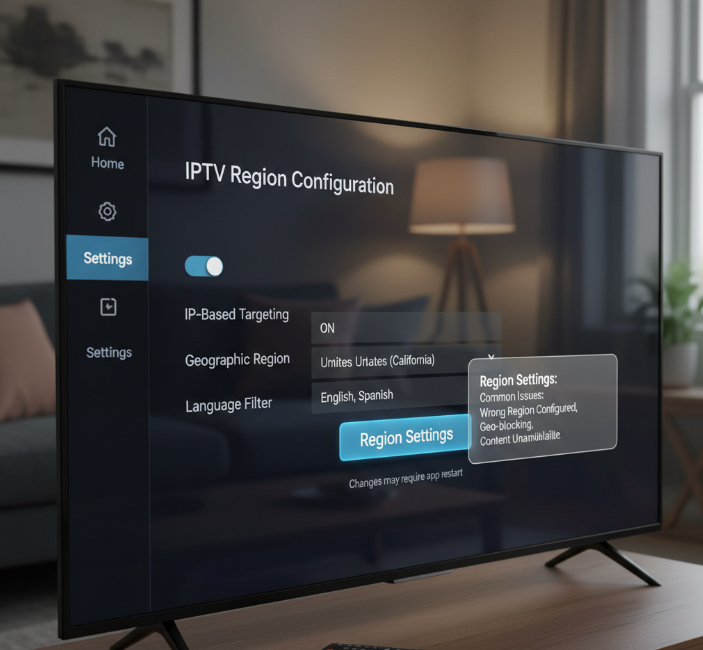
Filter by Geographic Region Using IP-Based Targeting
Location-based filters can unlock channels tied to where you're actually watching from. Dial it in right, and you’ll find local sports, news, and even hometown reruns.
Local Discovery: Tuning Settings for Regional Channels
| Filter Type | Use Case | Related Feature | Common Mistake |
|---|---|---|---|
| IP-Based Targeting | Regional news access | Location Services | Disabled GPS/Wi-Fi support |
| Geographic Region | City-specific channels | IPTV Region Settings | Wrong region configured |
| Timezone Matching | Live sports syncing | EPG (Program Guide) | Time drift errors |
| Language Detection | National language feed | Subtitle & Audio Tracks | Auto-detect failures |
Using filters that align with your IP address and Geographic Region, IPTV platforms can correctly route you to regional channels that won’t show up with global settings. If GPS or location services are turned off, things get weird. Double-check that the device you're using supports IP-Based Targeting — that’s the key to narrowing in on your area’s stuff.
Leverage Regex for Locating Local News Programs and Sports Events
Regex isn't just for coders — it’s a secret weapon for power users who want to pinpoint shows with surgical precision.
“Regex lets us go deep into channel metadata to fetch what others miss,” says Lin Tao, Senior Engineer at Star IPTV.
Regex helps pinpoint funky-named Local News Programs that don’t follow naming norms — think: "W5_NEWS_ONT" or "LOCAL_N12_FEED".
Pattern matching is ideal for Sports Events that vary by league, region, or match-day code.
Use wildcards like
.*to catch all local variations in one hit.Drop in pattern-based filters like
"*LIVE*SOCCER*UK*"to only pull up region-specific live games.
(Backgrounder: what a regular expression is.)
Adjust Language Filters for Kids Programming and Documentaries
You’d be surprised how often people miss out on awesome cartoons or deep-dive docs because they didn’t tweak the right language knobs.
Turn on Language Filters in your IPTV Settings to narrow down Kids Programming by dubbed audio or subtitle language.
Choose audio tracks labeled “EN-US” or “FR-CA” for age-specific regional streams.
For Documentaries, some of the best niche content comes via international sources — subtitles save the day here.
Check if your IPTV allows automatic Audio Track switching — some systems let you set a language default.
Once you set these filters right, the platform starts offering way smarter picks, especially for family and education-focused viewing.
Navigate Parental Controls and Local Broadcasting Regulations
If content keeps vanishing or not showing up at all, it could be due to tighter control settings or strict broadcast rules in your country.
Some shows or movies are blocked by default due to regional restrictions or age guidelines.
In some areas, Parental Controls are turned on by default — especially on new devices or with family profiles. You might think the channel is gone, but it's just hiding behind an Age Rating wall.
Likewise, Local Broadcasting Regulations can block certain categories or limit air times. To fix this:
Adjust your age filter to include older ratings if appropriate.
Switch your region temporarily to see what might be filtered out.
Check if there’s a “compliance” setting tied to Regional Compliance for your IPTV service.
One tiny setting change, and boom — your content shows up.
Bypass Region Locks with Net Neutrality-Compliant Techniques
Locked out of content due to location? Don’t sweat it — you’ve got workarounds.
Use VPN services
that route your IPTV Access through an unblocked country. Stick to Net Neutrality-compliant ones — don’t go shady.
Proxy Servers work too, but tend to mess with bitrate. Use them with caution.
Some IPTV platforms allow you to select a “Streaming Hub” — this is like choosing where your content is delivered from.
Always check the provider’s TOS. You want Compliant Techniques that don’t break licensing rules.
Test connections — not all VPNs stream equally. Look for ones built for adaptive video streaming.
Live sports streaming: search tricks for stable IPTV playback
Finding smooth, uninterrupted live sports on IPTV can feel like playing defense with your hands tied. Here’s how to score flawless, stable playback—every time.
1. Quick Fixes That Actually Work
Refresh that channel list like it owes you money
Outdated IPTV channel lists often point to broken or expired streams. Refreshing your playlist daily—or using auto-updating M3U links—keeps your feed fresh and reduces buffering.Don't sleep on your EPG
Your Electronic Program Guide is more than a schedule. It helps you lock onto correct time-slotted feeds—especially handy when sports events run overtime or get rescheduled.Cut buffering with adaptive bitrate support
Some streams offer dynamic quality switching. Search with bitrate tags or look for "ABR" in your IPTV provider's feed to keep playback smooth, even when your network hiccups. (More on Adaptive Bitrate.)
2. Smart Search Tricks You’re Probably Not Using
Search with team names, not channel names
If you’re trying to catch the Lakers game, don’t waste time typing “NBA Live.” Go straight for “Lakers” — IPTV search engines with metadata indexing will hook you up fast.Use time zones in your query
Typing something like “EPL 8PM EST” narrows down your results, especially on platforms with crowded event listings.Add "HD" or "no-buffer" to your keywords
These aren’t magical words, but smart IPTV providers often tag streams this way for users searching premium-quality links or low-latency options.Search by league abbreviations
MLS, UFC, F1 — these shortcut keywords are often embedded in stream metadata and deliver faster, more accurate results than full event names.
3. What the Pros Say
“We always tell users: forget the fancy names. Search short and smart—team, league, resolution, time. That’s the real search hack.”
— Dana Rivers, Senior IPTV Engineer @ StarIPTV
Dana’s worked with 30+ providers to optimize live sports streaming. Her biggest gripe? “Too many folks rely on default search. Learn the tags your provider uses—it’s like unlocking a cheat code.”
4. VPN or Nah?
Geo-restrictions block you out of big games
Some games are locked based on your location, even if they’re listed in your channel guide. You’ll click the link, and bam — “no signal.”Using a VPN? Pick the right region
If you’re in the U.S. and the stream is only open in Canada, set your VPN to Toronto or Vancouver. Problem solved.Pro tip: Test the stream location first
Some providers label their feeds like this:Match_HD_USAorLive_UK_Sky. Match your VPN with the stream’s tag to skip the guesswork.
5. The Gear That’ll Save Your Game
| Device Type | Streaming Stick | Gaming Console | Mobile Phone | Smart TV |
|---|---|---|---|---|
| Avg. Latency | 2–4 sec | 1–3 sec | 3–6 sec | 2–5 sec |
| Supports ABR | ✅ | ✅ | ⚠️ | ✅ |
| EPG Compatible | ✅ | ✅ | ✅ | ✅ |
| Buffer Tolerance | Low | Very Low | Medium | Low |
Heads-up: Gaming consoles like Xbox and PS5 are killing it in live sports playback—minimal buffering, and full EPG support. But don’t count out Smart TVs—they balance ease and quality well. Just avoid overloading mobile devices if your game matters.
Catching live sports shouldn’t feel like rocket science. With smarter search habits, some gear tweaks, and a little VPN wizardry, IPTV can give you buttery-smooth games from anywhere in the world.
Conclusion
Getting the search right on IPTV isn’t just about convenience — it’s about staying ahead in a business that moves fast. If your customers can’t quickly find live sports, international news, or their kid’s favorite cartoon, you’re one step closer to losing them. A smart search system can turn chaos into clicks, reduce support tickets, and make your service feel effortless — the way it should be.
Here’s what bulk IPTV buyers often struggle with:
Channel discovery feels like a scavenger hunt
Device compatibility is all over the map
Content filters don’t match how you package subscriptions
Regional restrictions make everything harder than it needs to be
A search system that’s tuned for scale? That’s not a bonus — it’s a must-have.
Small tweaks lead to big wins. As Steve Jobs once said, “Simple can be harder than complex — but it's worth it in the end.”
Let’s make IPTV search simple for your customers. Reach out — we’ll help you find the right fit for your operation.
References
Electronic program guide – https://en.wikipedia.org/wiki/Electronic_program_guide
Adaptive bitrate streaming – https://en.wikipedia.org/wiki/Adaptive_bitrate_streaming
Geo-blocking – https://en.wikipedia.org/wiki/Geo-blocking
Virtual private network – https://en.wikipedia.org/wiki/Virtual_private_network
M3U – https://en.wikipedia.org/wiki/M3U
Time shifting – https://en.wikipedia.org/wiki/Time_shifting
Parental controls – https://en.wikipedia.org/wiki/Parental_controls
Regular expression – https://en.wikipedia.org/wiki/Regular_expression
IP address – https://en.wikipedia.org/wiki/IP_address
IPTV Search & Channel FAQ
What are the fastest ways to find missing IPTV channels?
Use the program guide to scan for uncategorized or mislabeled channels
Check for region blocks tied to your IP address
Switch language filters to reveal international streams
Make sure your plan includes the channel type you're searching for
How do I improve search accuracy for on-demand content?
Stick to one content type at a time (movies, shows, documentaries)
Use exact keywords rather than broad terms
Enable “recommended for you” to improve algorithm accuracy
Which settings affect IPTV search speed the most?
Enable caching to avoid reloading large playlists
Use a stable internet connection with solid upload speed
Disable animations or long search previews to speed up results
Can I search for local sports streams on IPTV platforms?
You can search by team names or match titles
Some games may be hidden due to regional blocks
Using region filters helps reveal local sports streams
How do I filter IPTV results by supported devices?
Look for tags like “Smart TV Compatible” or “Mobile Ready”
Use built-in device filters in your TV box or app
Check if older devices support the stream format (H.265/4K etc.)
Why are some IPTV search results unavailable on certain devices?
Certain video formats aren't supported on all devices
Some streams are blocked by DRM or rights restrictions
Unsupported sources may not show up in search at all
How can I make regional IPTV content easier to discover?
Set your location or use IP-based filters
Include local language terms in your search
Try pattern-based search for short or hidden station names
Check if parental controls or geo-locks are hiding channels
What role do business models play in IPTV search results?
Your plan dictates what appears in search results
Free tiers usually hide premium channels and events
Upgrading your plan often unlocks additional categories
Which features should I enable for more stable live sports searches?
Enable HD filtering to remove low-quality feeds
Choose adaptive quality settings for unstable networks
Use suggested search for top or trending sports events
Avoid overloaded sources by checking stream info
Is it possible to search IPTV content offline?
Only if your service supports downloads or recording
Otherwise, a live connection is required for search & playback